Kiosk Setup
Configure tablets and TVs as family kiosks for easy chore tracking and family dashboard display.
Last updated: March 2026
What is Kiosk Mode?
Kiosk mode transforms a tablet, phone, or TV into a dedicated family dashboard. Instead of requiring individual logins, the kiosk displays family information and allows quick interactions for all family members.
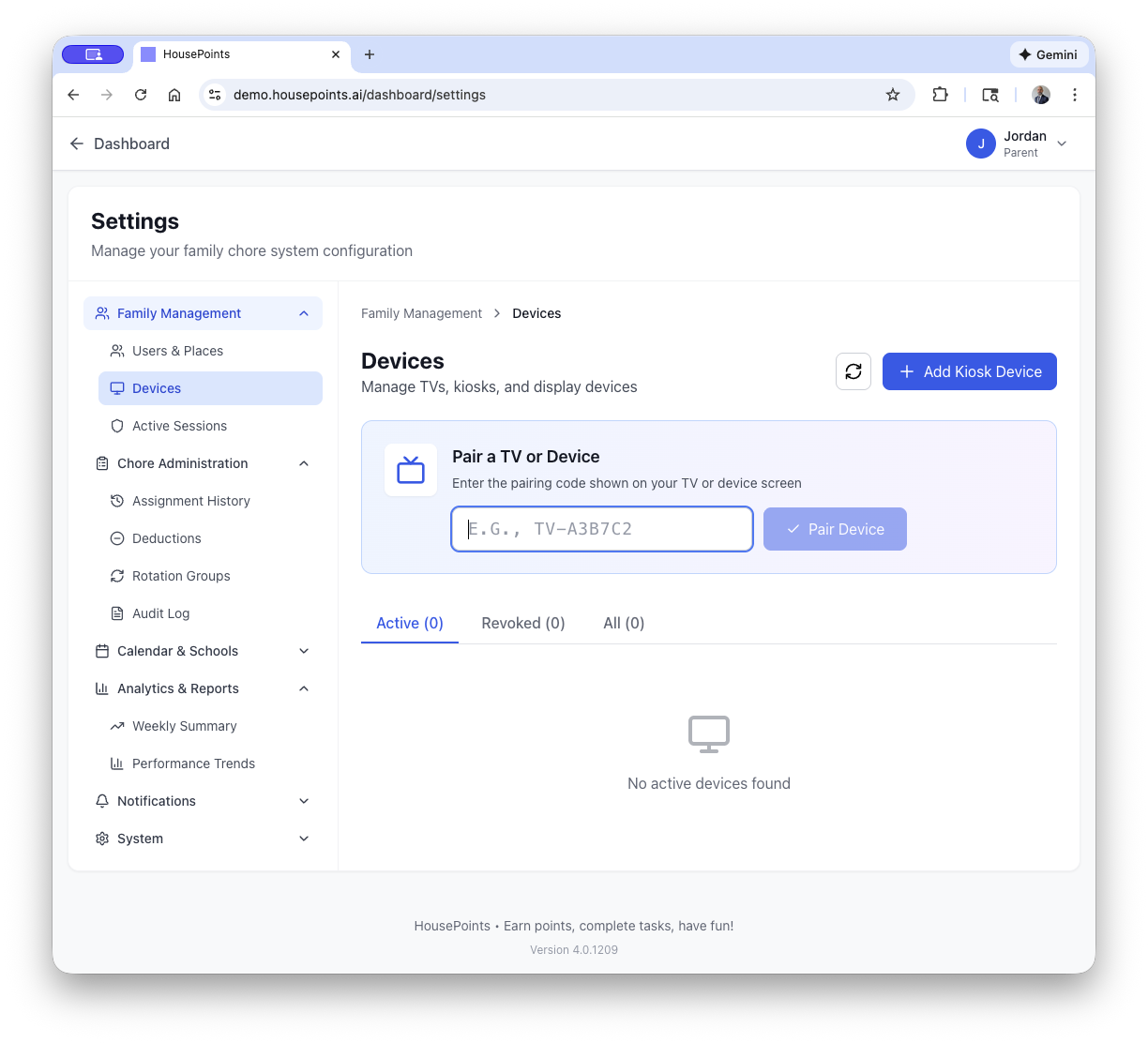
Kiosk Benefits
- No Login Required - Family members tap to select themselves, no passwords needed.
- Always-On Display - Perfect for kitchen tablets showing today's chores.
- Quick Check-Off - Kids can mark chores complete in seconds.
- Family Visibility - Everyone sees the leaderboard, calendar, and pending tasks.
Device Options
HousePoints kiosk mode works on various devices:
Tablets (Recommended)
- iPad - Any iPad running iOS 14 or later.
- Android Tablets - Samsung Galaxy Tab, Amazon Fire tablets, or any Android tablet with a modern browser.
- Ideal Placement - Kitchen counter, hallway, or common area where family gathers.
Smart TVs
- Any Smart TV with a Browser - Use the built-in web browser.
- Streaming Devices - Fire TV Stick, Roku, Apple TV, or Chromecast with Google TV.
- Best For - Family rooms where you want a large, visible display.
Old Phones
Repurpose an old smartphone as a dedicated kiosk. Mount it on the wall or place it in a charging stand.
Pairing a Device
Setting up a kiosk takes less than two minutes using our secure pairing code system.
Step 1: Generate a Pairing Code
- Sign in to HousePoints on your computer or phone (as a parent).
- Go to Settings → Kiosk Devices.
- Click Add New Kiosk.
- A 6-character pairing code will appear (e.g., "ABC123").
- The code expires in 10 minutes for security.
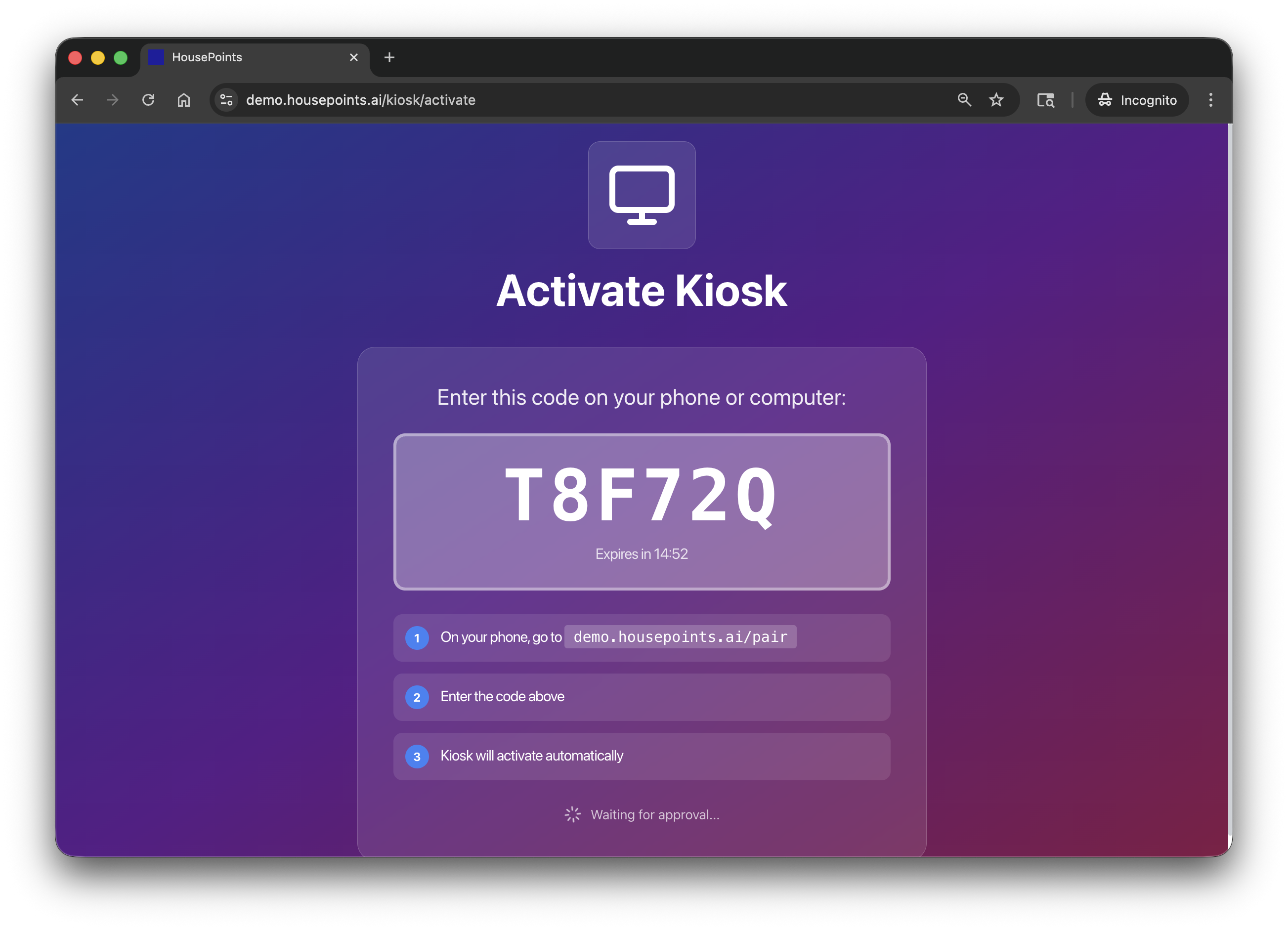
Step 2: Enter the Code on Your Device
- On the device you want to use as a kiosk, open a web browser.
- Navigate to your family's HousePoints URL or
housepoints.ai/kiosk. - Enter the 6-character pairing code.
- Click Pair Device.
Step 3: Configure and Save
- Give the kiosk a name (e.g., "Kitchen iPad" or "Living Room TV").
- Select which widgets to display (chores, leaderboard, calendar, meals).
- Choose a theme (light or dark mode).
- Click Save.
The device is now paired and will stay connected. If the device loses power, it will automatically reconnect when turned back on.
Kiosk Widgets
Kiosk displays are customizable with widgets. You can show all widgets or select specific ones based on your family's needs.
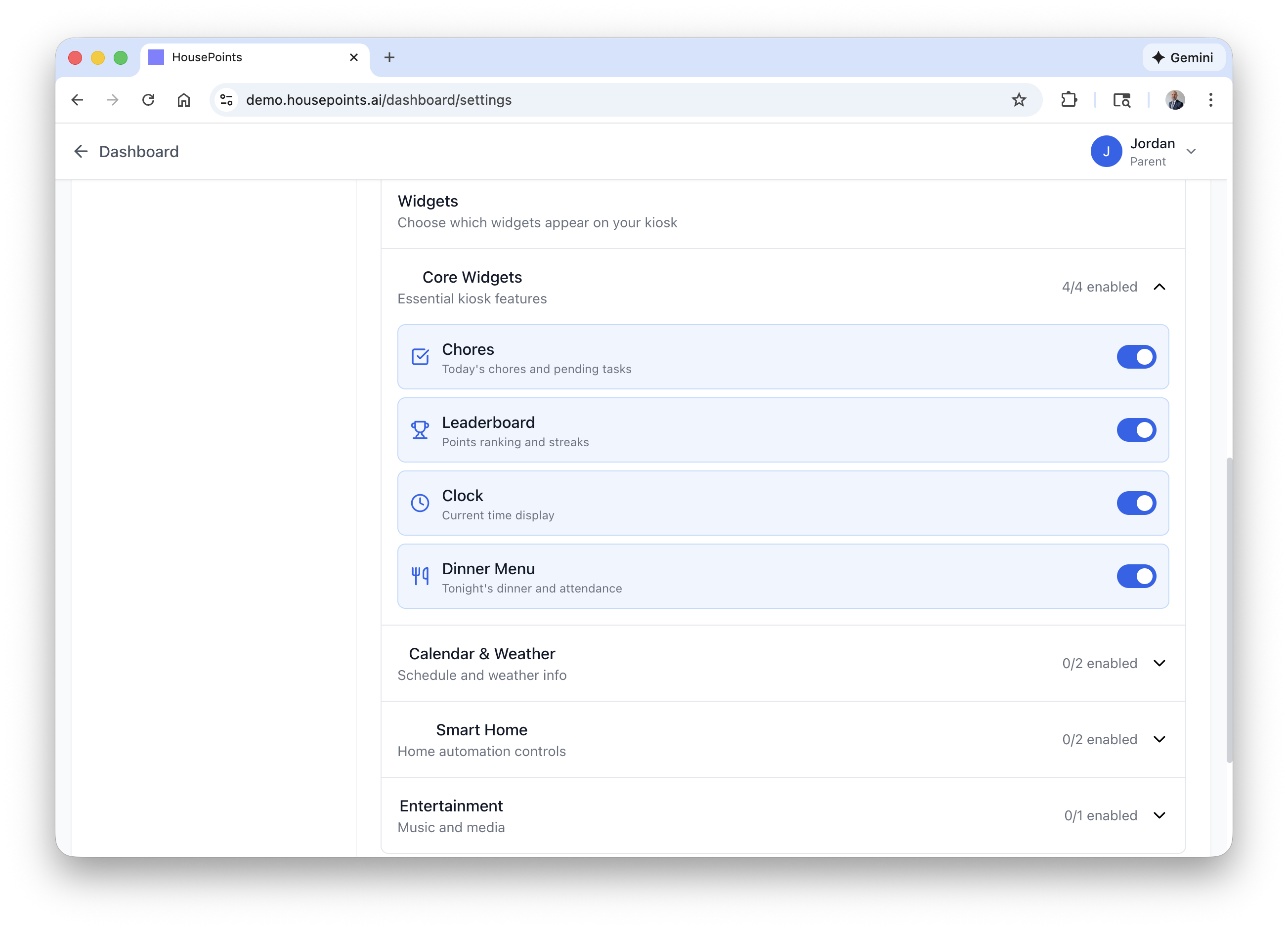
Available Widgets
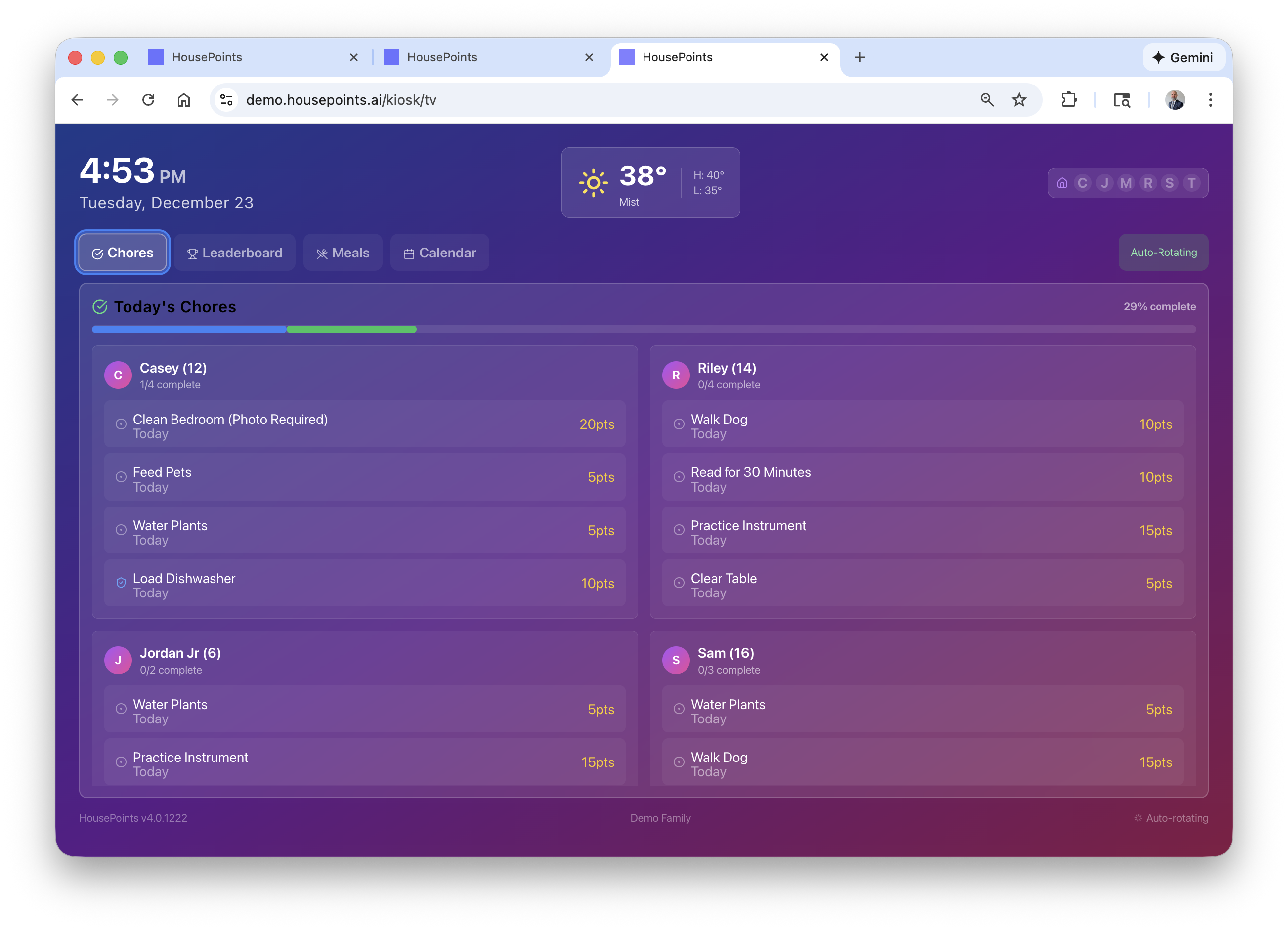
- Today's Chores - Shows all chores due today, organized by child. Kids can tap to mark chores complete.
- Leaderboard - Displays current point standings and streaks. Great for motivation.
- Calendar - Weekly view of family events and scheduled activities.
- Meals - Today's meal plan and who's cooking.
- Weather - Local weather with current conditions and forecast (requires location setup).
- Clock - Large digital or analog clock display.
Layout Options
Choose a layout that works best for your screen and content:
- Grid - Widgets arranged in a structured grid. Best for tablets with multiple widgets.
- Flexible - Widgets adapt to available space. Works well on different screen sizes.
- Compact - Denser layout that fits more information on screen.
TV Kiosk Setup
Using HousePoints on a TV creates a central family dashboard that everyone can see. Here's how to set it up on popular TV platforms.
Using the TV's Web Browser
Most smart TVs have a built-in web browser. This is the simplest method:
- Open the web browser on your TV (usually found in the apps menu).
- Navigate to your family URL or
yourfamily.housepoints.ai/kiosk. - Enter your pairing code.
- Bookmark the page for easy access.
Using a Streaming Device
Fire TV, Roku, and other streaming devices can display HousePoints:
Fire TV / Fire TV Stick
- Download the "Amazon Silk Browser" or "Firefox for Fire TV" app.
- Open the browser and navigate to your HousePoints kiosk URL.
- Complete the pairing process.
Apple TV
- Use AirPlay to mirror your iPhone or iPad running HousePoints.
- Or use a third-party browser app if available.
Chromecast / Google TV
- Cast your Chrome browser tab from a computer or phone.
- Or use the built-in Chrome browser on Google TV devices.
TV-Optimized Display
When you access the kiosk on a TV, HousePoints automatically switches to a TV-optimized layout with:
- Larger text and icons readable from across the room
- High-contrast colors optimized for TV displays
- D-pad remote navigation support
- Auto-rotating widgets (configurable interval)
Customization Options
Each kiosk can be customized independently. Go to Settings → Kiosk Devices and click on a device to edit:
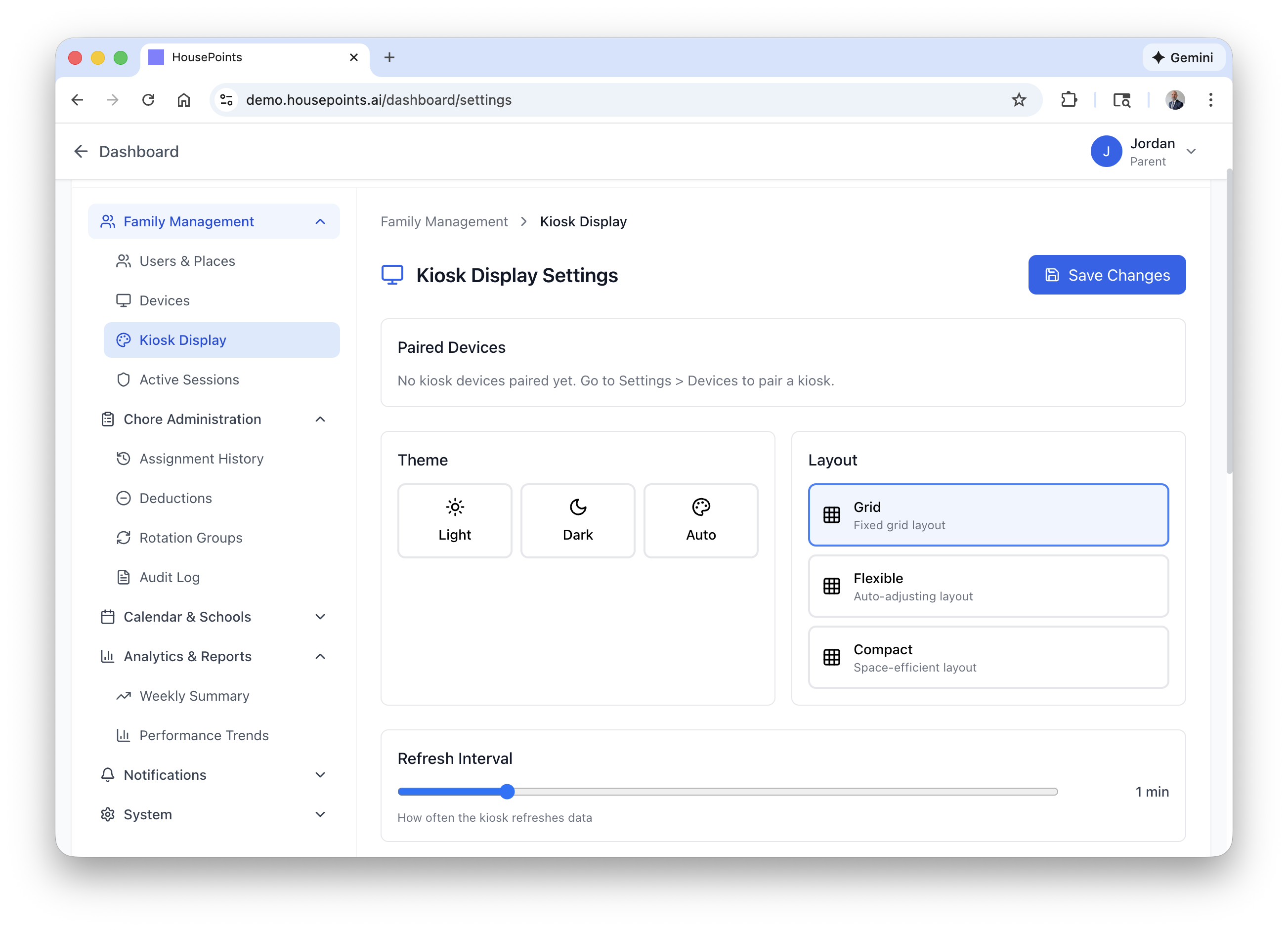
- Display Name - Change what the kiosk is called in your device list.
- Visible Widgets - Toggle which widgets appear on the kiosk.
- Theme - Light mode, dark mode, or auto (follows time of day).
- Auto-Lock - Require a PIN after a period of inactivity.
- Screen Timeout - Dim or turn off the display after idle time.
- Location - Set the location for weather widget.
Troubleshooting
Pairing Code Not Working
- Make sure the code hasn't expired (valid for 10 minutes).
- Check that you're entering the code exactly as shown (case-insensitive).
- Generate a new code and try again.
Kiosk Shows Blank Screen
- Refresh the browser page.
- Check your internet connection.
- Clear the browser cache and reload.
- Ensure the device isn't in power-saving mode.
Device Keeps Disconnecting
- Check your WiFi signal strength at the device location.
- Disable battery optimization/power saving for the browser app.
- Keep the device plugged in to prevent sleep mode.
TV Remote Navigation Issues
- Use arrow keys to navigate between elements.
- Press OK/Enter/Select to activate buttons.
- Press Back to return to previous screens.
- Some TV browsers have limited navigation support.
Removing a Kiosk Device
- Go to Settings > Kiosk Devices.
- Find the device you want to remove.
- Click the Remove button.
- The device will be unpaired and return to the pairing screen.
Pro Tip
For the best tablet kiosk experience, enable "Guided Access" on iPad or "Screen Pinning" on Android. This prevents kids from accidentally exiting the kiosk app.