Mobile App Guide
Download and use the HousePoints mobile app to manage chores, verify tasks, and track points on the go.
Last updated: March 2026
Download the App
The HousePoints mobile app is available for iOS and Android devices. Download it to manage your family's chores from anywhere.
Requirements
- iPhone or iPad running iOS 15.0 or later, or an Android device
- An existing HousePoints account (sign up at housepoints.ai first)
- Internet connection for syncing
Download
- iOS - Search for "HousePoints" in the App Store and tap Get.
- Android - Search for "HousePoints" in the Google Play Store and tap Install.
Amazon Fire tablet users without Google Play can use the web app instead. See the Amazon Fire Tablets section for setup instructions.
Signing In
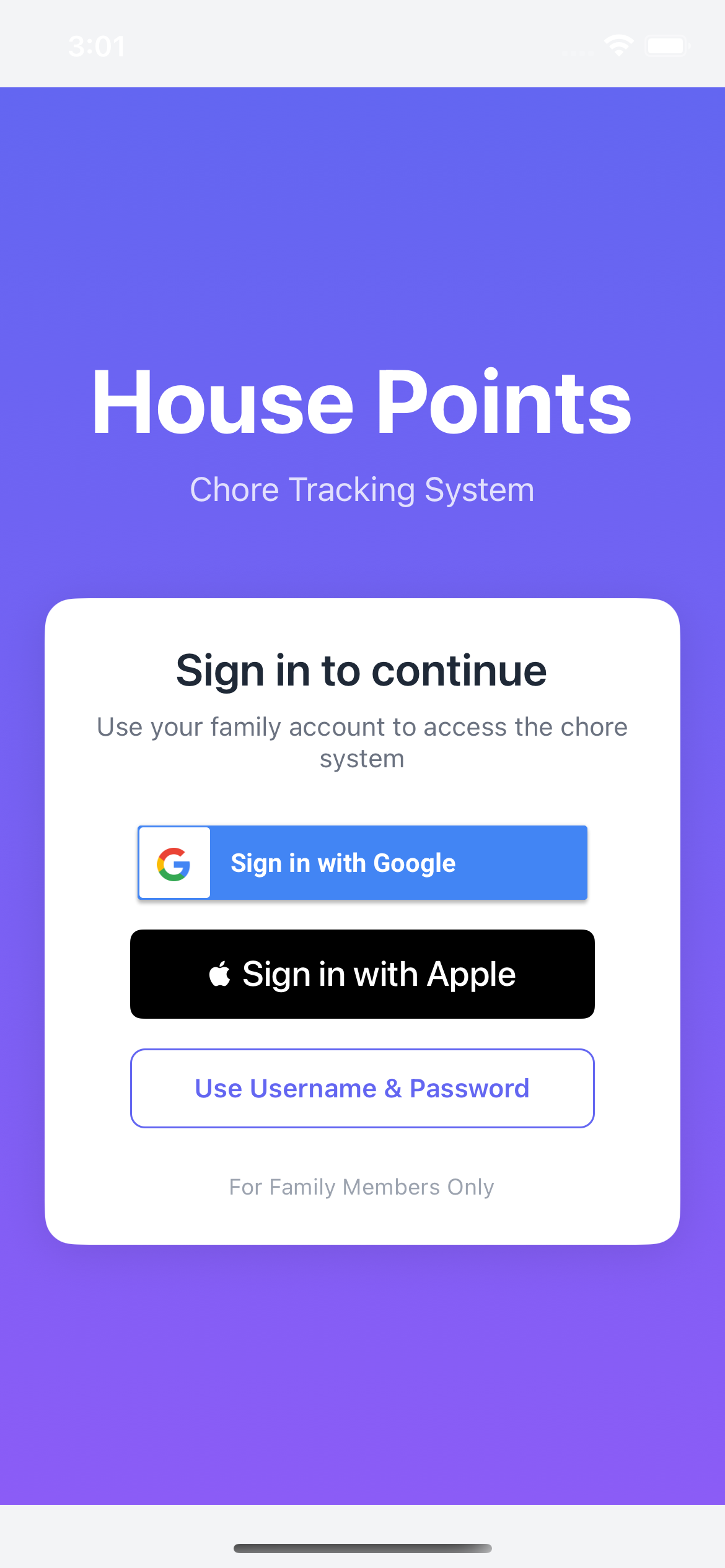
Open the HousePoints app and sign in with the same account you used to create your family.
Sign-In Options
- Sign in with Google - Tap the Google button and authorize with your Google account.
- Sign in with Apple - Use Face ID, Touch ID, or your Apple ID password.
- Sign in with Microsoft - Authenticate with your Microsoft account.
- Email & Password - Enter the credentials you created during signup.
After signing in, you'll see your family's dashboard with today's chores, pending verifications, and the leaderboard.
Child Accounts
If you created login credentials for your children, they can also sign in to the mobile app to view their chores and mark them complete. Children see a simplified view focused on their tasks and rewards.
Amazon Fire Tablets
Amazon Fire tablets are an affordable option for giving kids their own device to track chores. Since Fire tablets don't have Google Play Services, kids use password login instead of Google Sign-In.
Setting Up Kid Password Login
Before your kids can log in on a Fire tablet, you need to enable password login for your family:
- Log in to your HousePoints account on a computer or phone.
- Go to Settings → System → Kid Passwords.
- Enable the Kid Password Login toggle.
- Go to Settings → Family Management → Users & Places.
- Click on a child's name to expand their profile.
- Click Set Password and create a simple password for them (minimum 4 characters).
Installing on Fire Tablets
- On the Fire tablet, open the Silk browser.
- Navigate to your family's HousePoints URL (e.g.,
yourfamily.housepoints.ai). - The app will detect that Google Sign-In isn't available and show the password login form.
- Enter your family code (the subdomain, like
yourfamily), the child's username, and their password. - Tap Sign In.
Add to Home Screen
For the best experience, add HousePoints to the Fire tablet's home screen. In Silk browser, tap the menu icon and select "Add to Home Screen". This creates an app-like shortcut that opens HousePoints without browser controls.
Password Login Security
Kid passwords are designed to be simple for children to remember and type. They require only 4 characters minimum. This is intentional since children don't have access to sensitive data. Parents must still use Google, Apple, or Microsoft sign-in for security.
- Parents can reset passwords at any time through the web app.
- Password login is kid-only. Parents cannot use password login (except on the demo family).
- Disable anytime. You can turn off kid password login in Settings if no longer needed.
App Overview
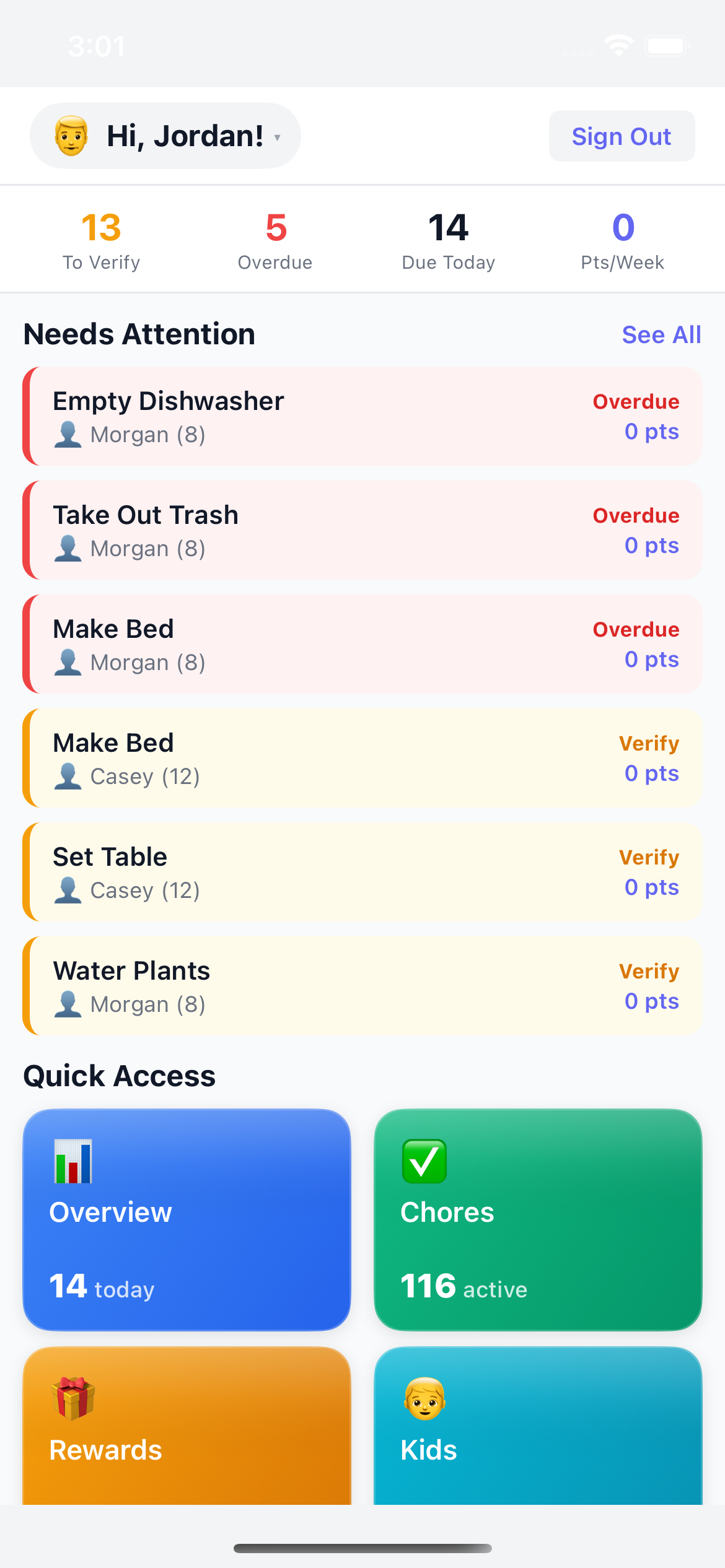
The HousePoints app is designed for quick, on-the-go chore management. Here's what you'll find in each section:
Home Tab
- Today's Chores - All chores due today, organized by family member.
- Pending Verifications - Chores completed by kids waiting for your approval.
- Quick Stats - Points earned today and completion percentage.
Chores Tab
- All Chores - Browse and manage all family chores.
- Create Chore - Add new chores with assignments and schedules.
- Chore Templates - Quick-start with common household tasks.
Leaderboard Tab
- Points Standings - See who's in the lead.
- Weekly Progress - Track points earned this week.
- Streaks - View consecutive days of completed chores.
Rewards Tab
- Available Rewards - Rewards kids can redeem.
- Redemption Requests - Pending reward requests to approve.
- Create Reward - Add new rewards to motivate kids.
Settings
- Account - Manage your profile and preferences.
- Family - View and manage family members.
- Notifications - Configure push notification settings.
- Kiosk Devices - Manage paired tablets and TVs.
Notifications
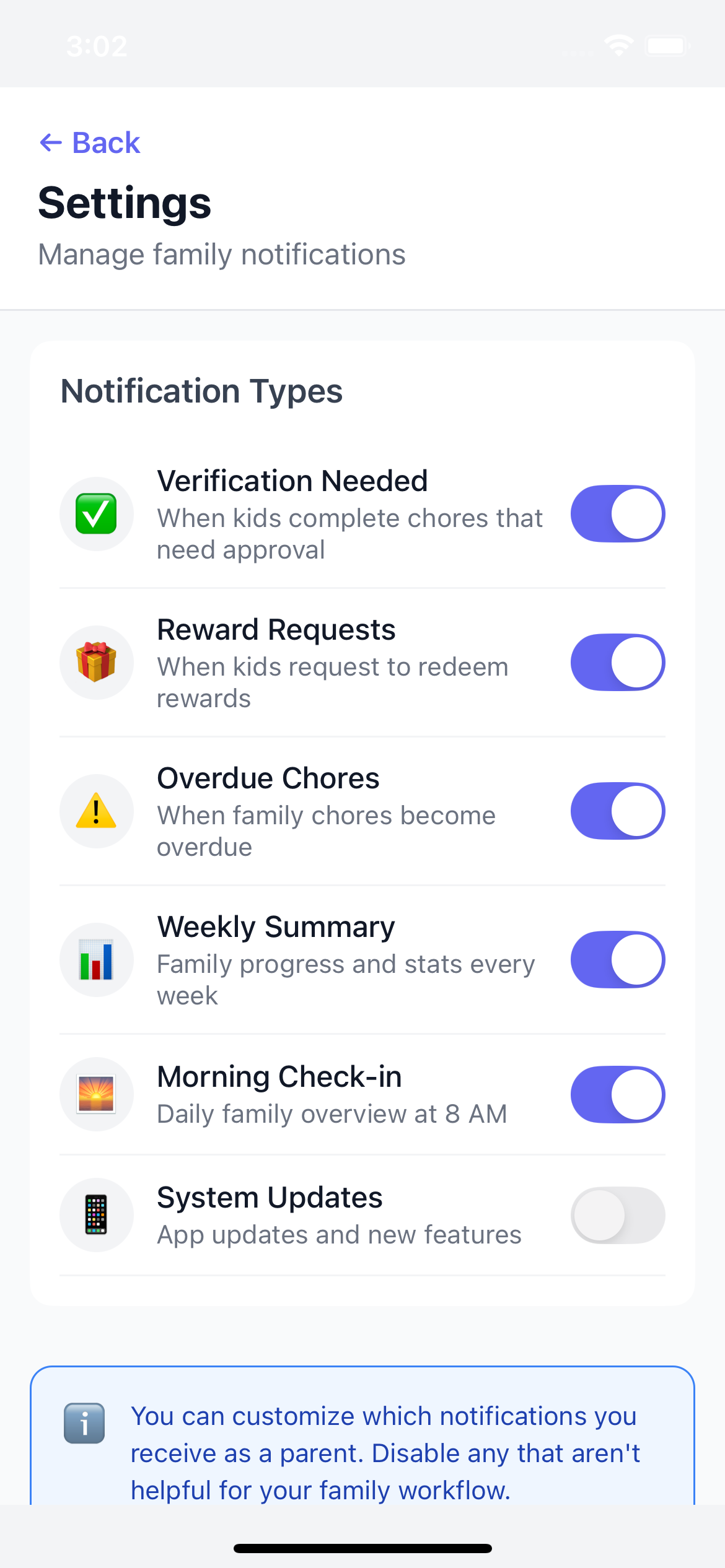
Push notifications keep you informed about family activity. Enable notifications when prompted during setup, or configure them later in Settings.
Notification Types
- Chore Completed - When a child marks a chore as done.
- Verification Needed - Chores waiting for your approval.
- Reward Requested - When a child wants to redeem points.
- Daily Reminder - Optional morning reminder about today's chores.
- Streak Alert - Warning when a child's streak is at risk.
Configuring Notifications
- Go to Settings > Notifications in the app.
- Toggle individual notification types on or off.
- Set quiet hours to pause notifications during specific times.
Quick Actions
The mobile app is optimized for quick interactions. Here are the most common actions:
Verify a Chore
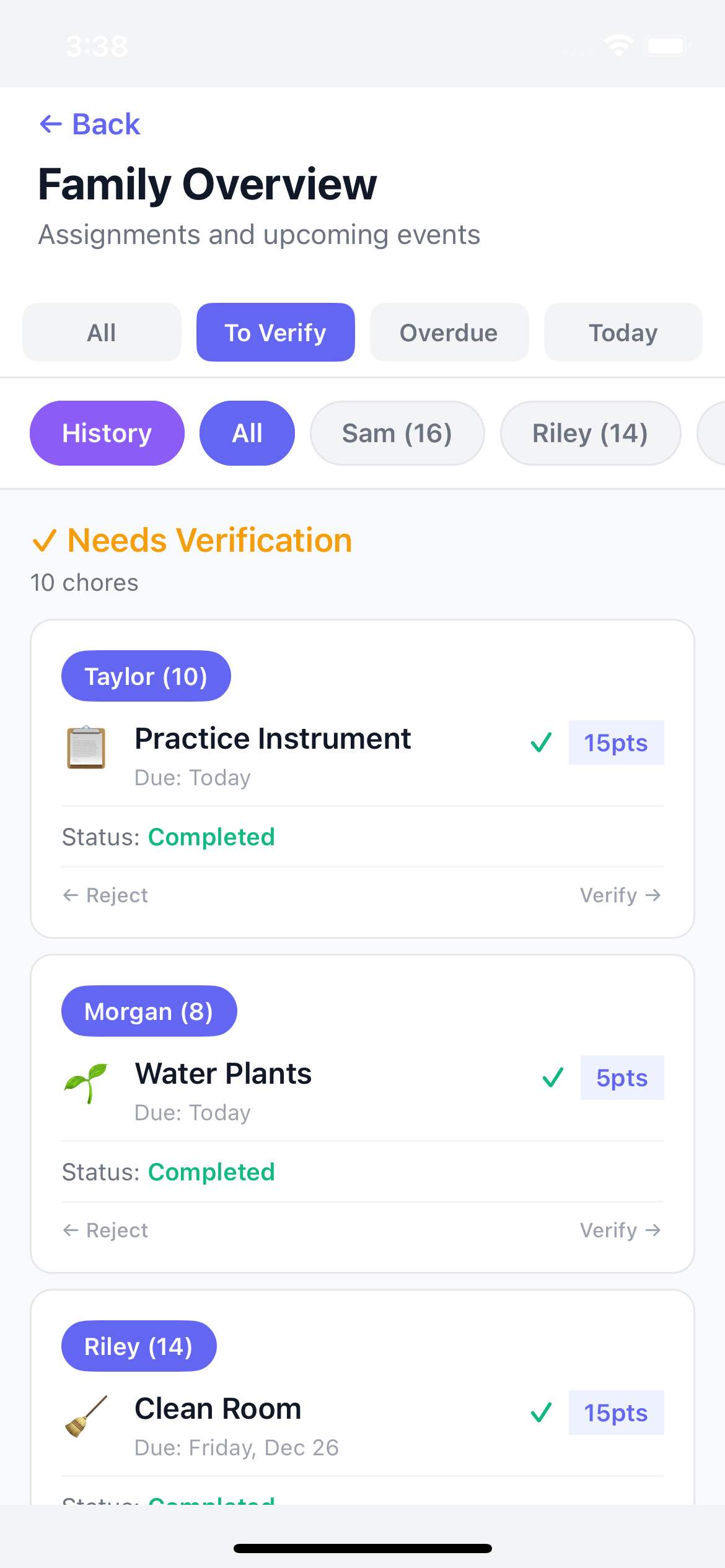
- Tap on a chore in the "Pending Verifications" section.
- Review the completion (kids can add photos for proof).
- Tap Verify to approve and award points.
- Or tap Reject if the chore needs to be redone.
Add Bonus Points
- Tap the + button on the home screen.
- Select Add Points.
- Choose the child and enter the point amount.
- Add an optional note (e.g., "Extra help with dinner").
- Tap Add.
Create a Quick Chore
- Tap the + button.
- Select New Chore.
- Enter the chore name and point value.
- Assign to one or more children.
- Set the due date (today, tomorrow, or custom).
- Tap Create.
Approve a Reward Redemption
- Tap on a pending reward request.
- Review the reward and point cost.
- Tap Approve to deduct points and grant the reward.
Syncing with Web
HousePoints syncs instantly across all devices. Changes made on the mobile app appear immediately on the web and kiosk devices.
How Syncing Works
- Real-Time Updates - Changes sync within seconds when online.
- Offline Support - Basic viewing works offline. Changes sync when you reconnect.
- Conflict Resolution - If the same item is edited on two devices, the most recent change wins.
Troubleshooting Sync Issues
- Pull down on any screen to force a refresh.
- Check your internet connection.
- Sign out and sign back in if data seems stuck.
- Make sure you're using the same account on all devices.
Widget Support
Add the HousePoints widget to your iPhone home screen for at-a-glance chore status. Long press on your home screen, tap the + button, search for HousePoints, and choose a widget size.