Getting Started
Set up your HousePoints account and start managing your family's chores in minutes.
Last updated: March 2026
Create Your Account
Getting started with HousePoints takes just a few minutes. Visit demo.housepoints.ai and click Start Free Trial to begin.
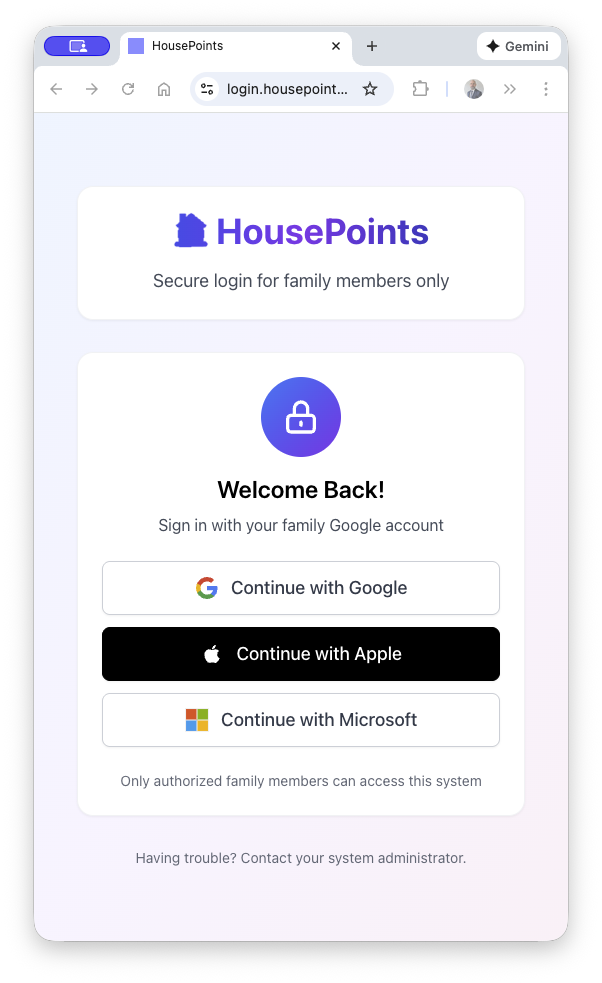
Sign Up Options
You can create your account using:
- Google Account — The fastest option. Click "Continue with Google" and authorize HousePoints.
- Apple Account — Sign in with your Apple ID for privacy-focused authentication.
- Microsoft Account — Use your work or personal Microsoft account.
- Email & Password — Create a traditional account with your email address.
After signing in, you'll be guided through creating your family profile. Your 14-day free trial starts immediately with full access to all features.
Set Up Your Family
Once you've created your account, you'll need to set up your family profile. This includes:
- Family Name — Choose a name for your family (e.g., "The Smith Family" or simply "Smith").
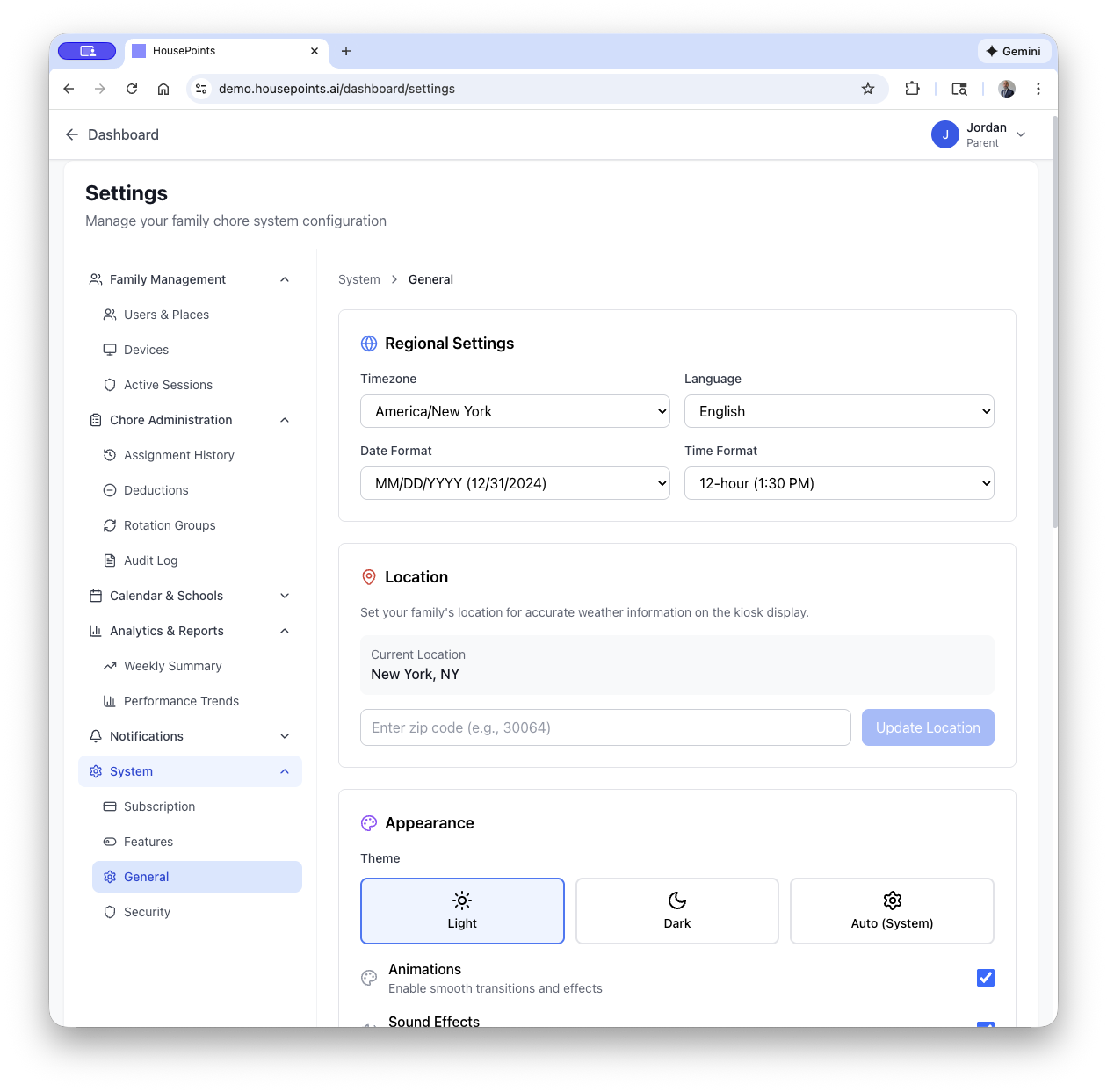
- Time Zone — Select your local time zone so chores and schedules display correctly.
- Week Start Day — Choose whether your week starts on Sunday or Monday.
Your family profile creates a private space where only invited family members can see and interact with your chores, points, and schedules.
Add Children
After setting up your family, you'll add profiles for each child. Navigate to Settings > Family Management > Users & Places and click Add User.
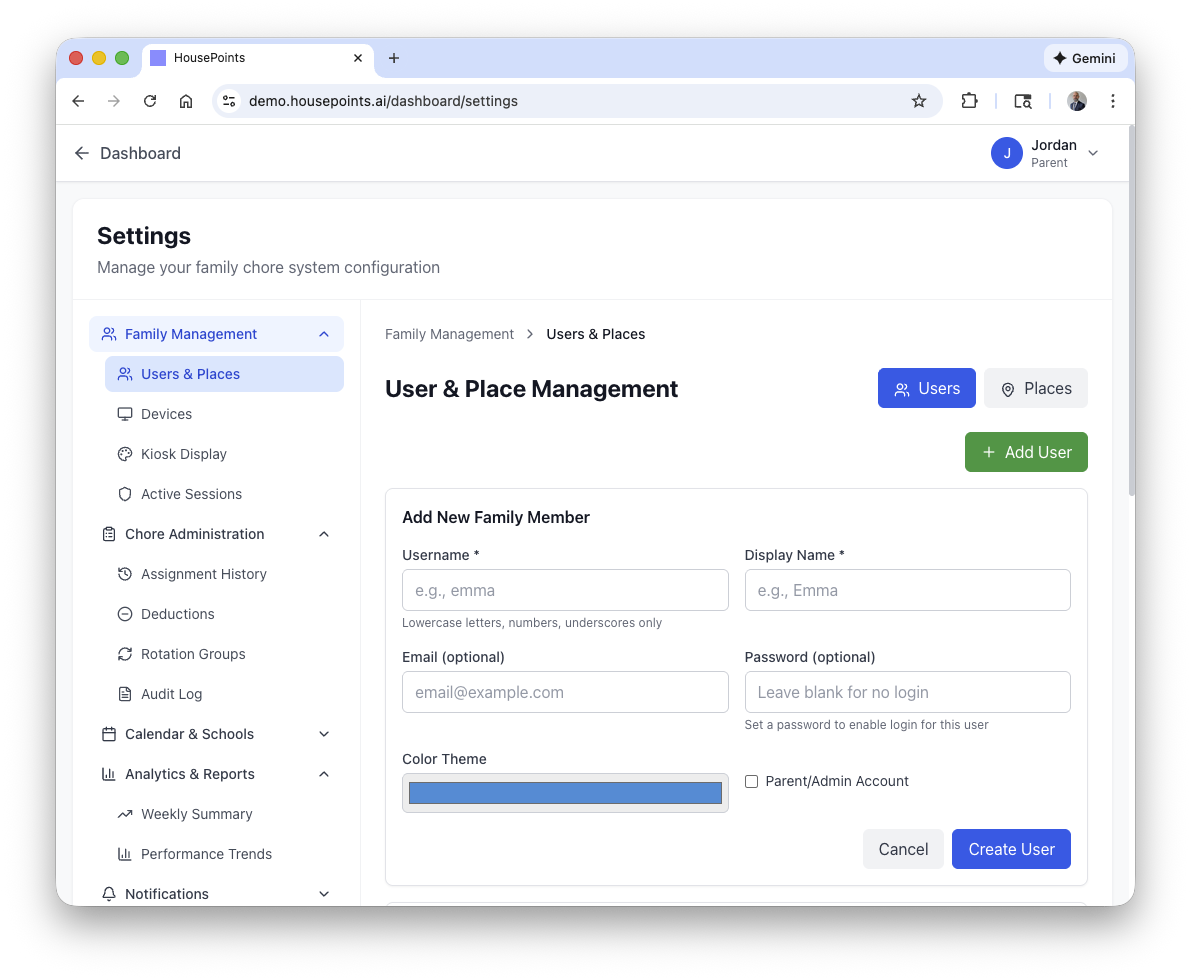
For Each Child, Enter:
- Name — Their first name (displayed throughout the app).
- Birthday — Optional, but enables age-appropriate chore suggestions.
- Avatar/Color — Choose a color or avatar to identify them on the leaderboard and calendar.
Child Login Options
Children can access their own dashboard to view and complete chores:
- Google/Apple/Microsoft Sign-In — Older children with email accounts can sign in with OAuth.
- Kid Password Login — For children without email addresses or on devices without Google Play Services (like Amazon Fire tablets). Enable this in Settings → System → Kid Passwords.
- Kiosk Mode — No login required when using a dedicated family kiosk.
Add a Co-Parent
HousePoints works great for two-parent households, separated families, and multi-guardian situations. To add another parent:
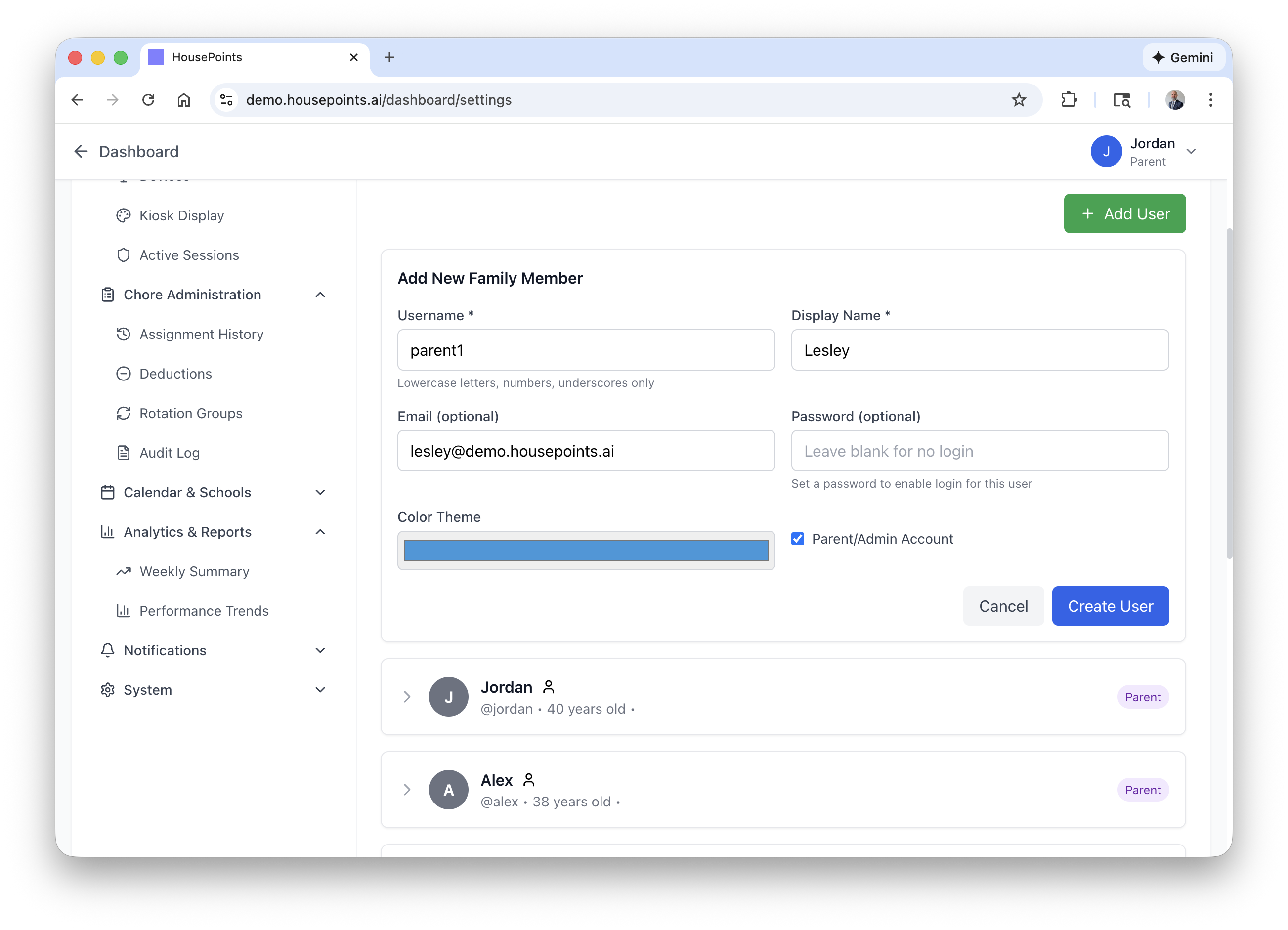
- Go to Settings > Family Management > Users & Places.
- Click Add User and select the Parent role.
- Enter their email address.
- They'll receive an invitation email with a link to join your family.
Both parents have full access to create chores, verify completions, manage rewards, and adjust settings. All changes sync instantly across devices.
Adding a Caretaker
You can also add caretakers (babysitters, grandparents, nannies) with limited access. When adding a user, select the Caretaker role and configure which permissions they have, such as verifying chores, viewing reports, or managing rewards.
Understanding the Dashboard
The HousePoints dashboard is your central hub for managing family activities. Here's what you'll find:
Parent Dashboard
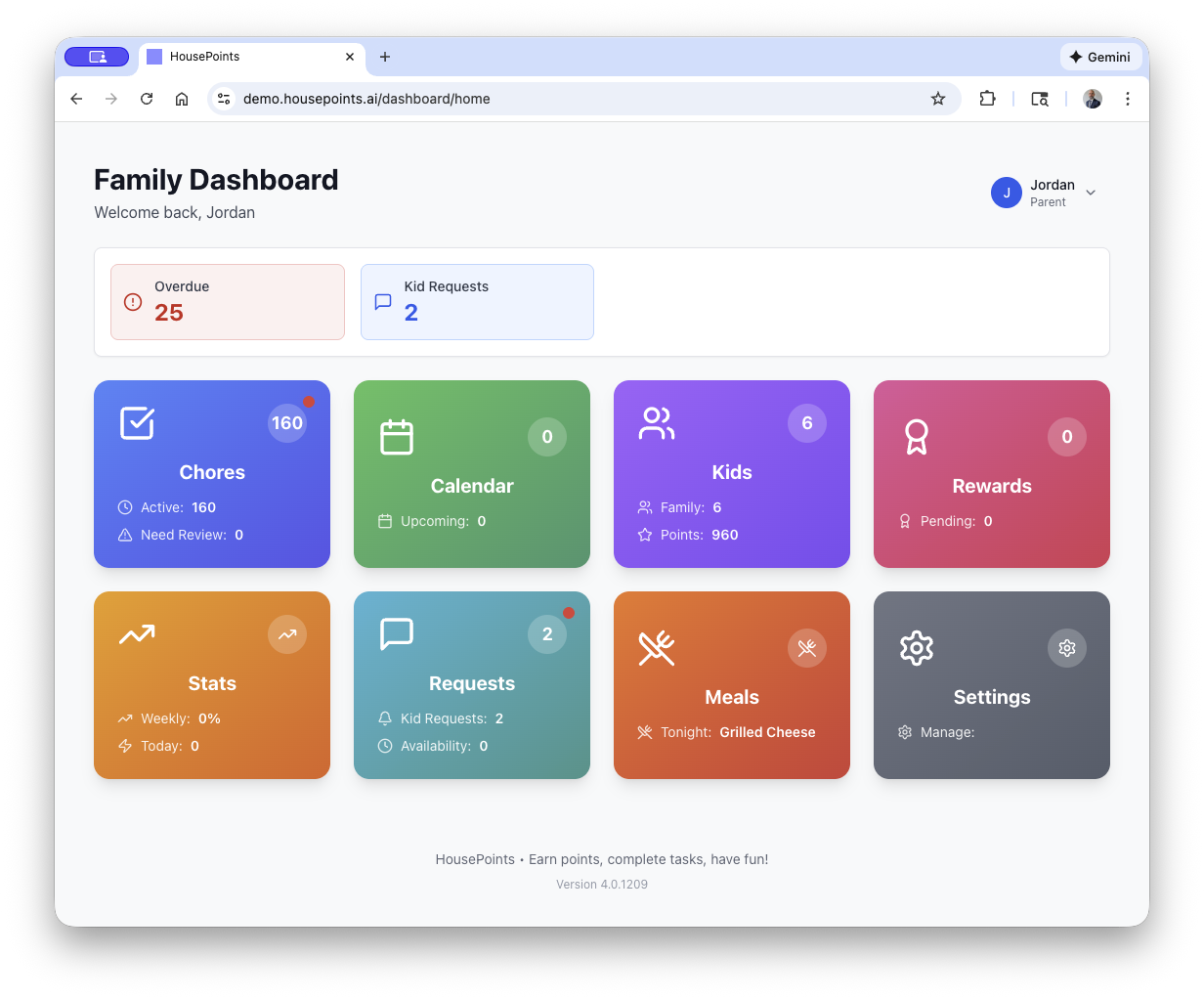
- Today's Chores — See all chores due today with completion status.
- Pending Verifications — Chores waiting for parent approval.
- Leaderboard — Points standings for all children.
- Quick Actions — Add points, create chores, or approve tasks.
- Recent Activity — Timeline of completed and verified chores.
Child Dashboard
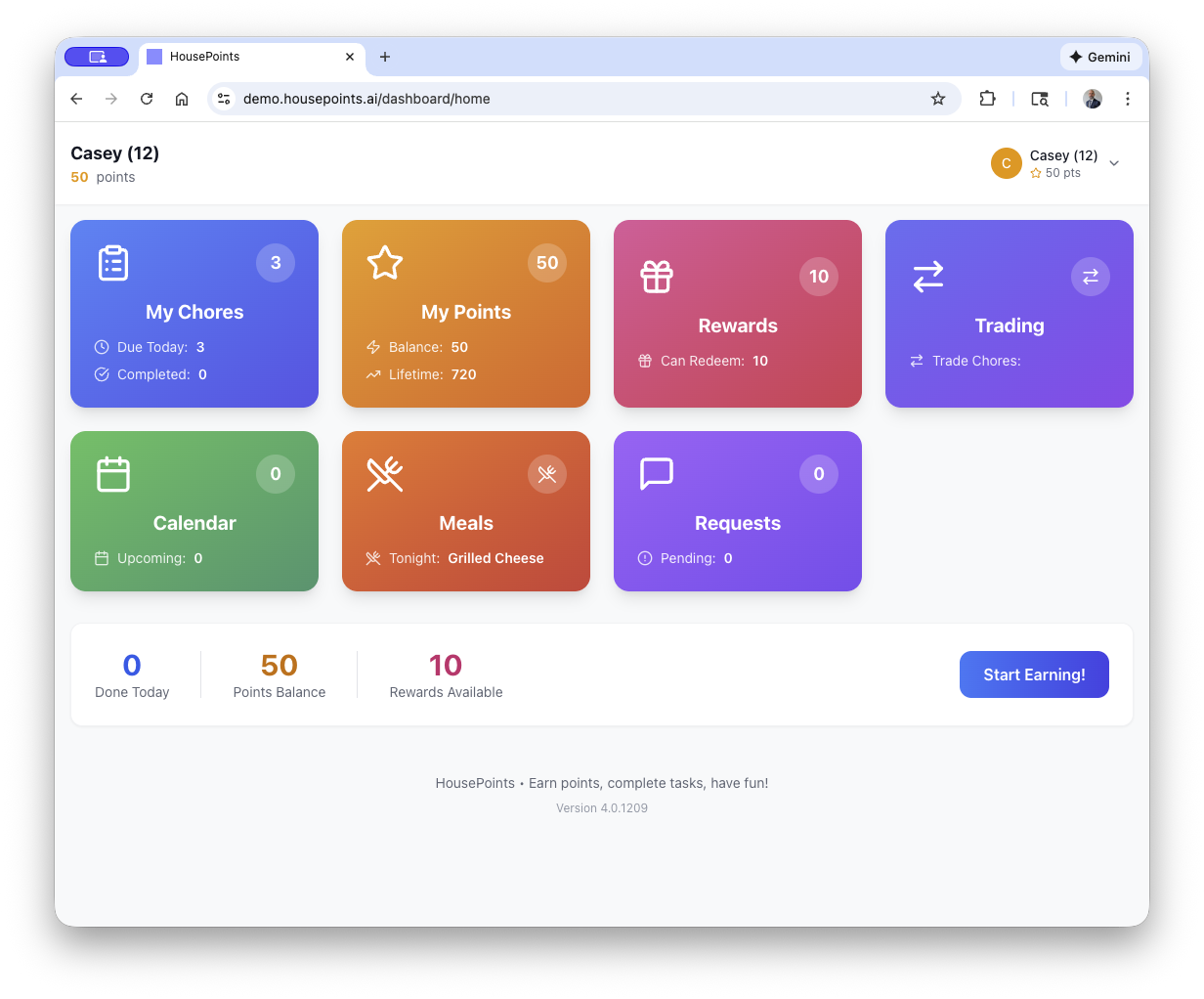
- My Chores — Assigned chores with point values.
- Points Balance — Current points available for rewards.
- Rewards Shop — Available rewards to redeem.
- Streak Counter — Track consecutive days of completing all chores.
Next Steps
Now that your family is set up, here's what to do next:
- Create your first chore — Start with a simple daily chore like "Make your bed" or "Put dishes in dishwasher."
- Set up rewards — Add motivating rewards like screen time, allowance bonuses, or special privileges.
- Configure a kiosk — Set up a tablet in the kitchen for easy chore check-offs.
- Download the mobile app — Get the app for iOS or Android for on-the-go chore management.
Need Help?
If you have questions during setup, visit our Support page or contact us directly. We're here to help you get started.