Chores
Create, assign, and track household chores. Set up recurring tasks, require verification, and motivate kids with points.
Last updated: March 2026
Creating Chores
Chores are the foundation of HousePoints. Each chore has a name, point value, and can be assigned to one or more children.
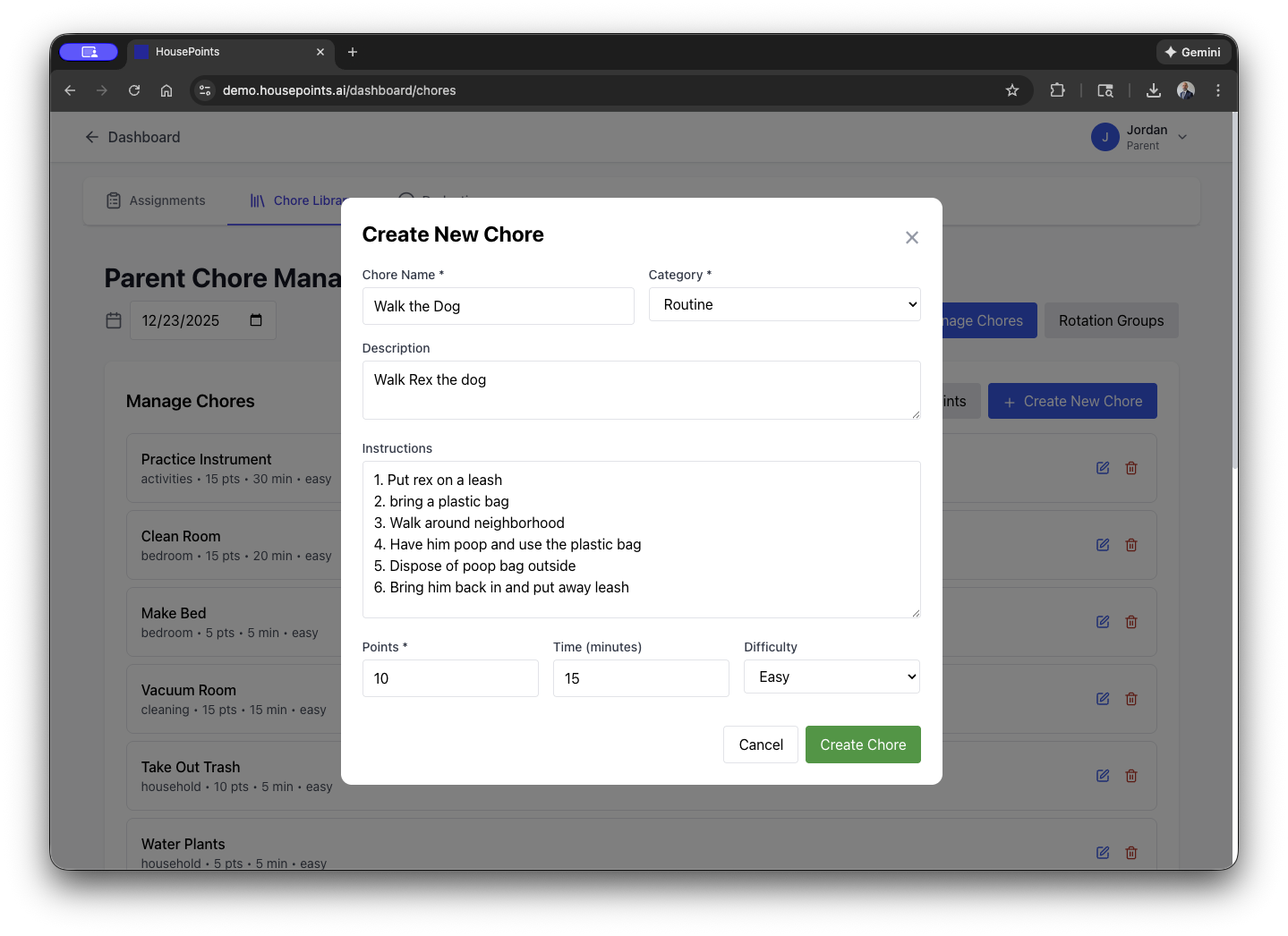
How to Create a Chore
- Navigate to the Chores section in the app or web dashboard.
- Click Add Chore or the + button.
- Enter the chore details:
- Name - A clear, specific name (e.g., "Make your bed", "Empty dishwasher").
- Description - Optional details about what's expected.
- Point Value - How many points this chore is worth.
- Category - Optional grouping (Bedroom, Kitchen, Outdoor, etc.).
- Click Save.
Point Value Guidelines
When setting point values, consider the effort and time required:
- 5-10 points - Quick tasks (make bed, put away shoes, feed pet).
- 15-25 points - Medium tasks (empty dishwasher, take out trash, vacuum a room).
- 30-50 points - Larger tasks (mow lawn, clean bathroom, do laundry).
- 50+ points - Big projects (deep clean room, wash car, organize closet).
Chore Templates
HousePoints includes pre-built chore templates to get you started quickly. When creating a chore, click Use Template to choose from common household tasks with suggested point values.
Assigning Chores
Chores can be assigned to specific children or left unassigned for anyone to claim.
Assignment Options
- Assigned to Specific Child - The chore appears on that child's task list. Only they can complete it.
- Assigned to Multiple Children - Each assigned child must complete the chore individually.
- Unassigned (Family Chore) - Any family member can claim and complete it. First come, first served.
- Rotating Assignment - Automatically rotates between children each time the chore recurs.
Changing Assignments
To reassign a chore:
- Open the chore details.
- Click Edit.
- Update the assigned children.
- Click Save.
Recurring Chores
Most household chores happen regularly. Set up recurring schedules so chores automatically appear on the appropriate days.
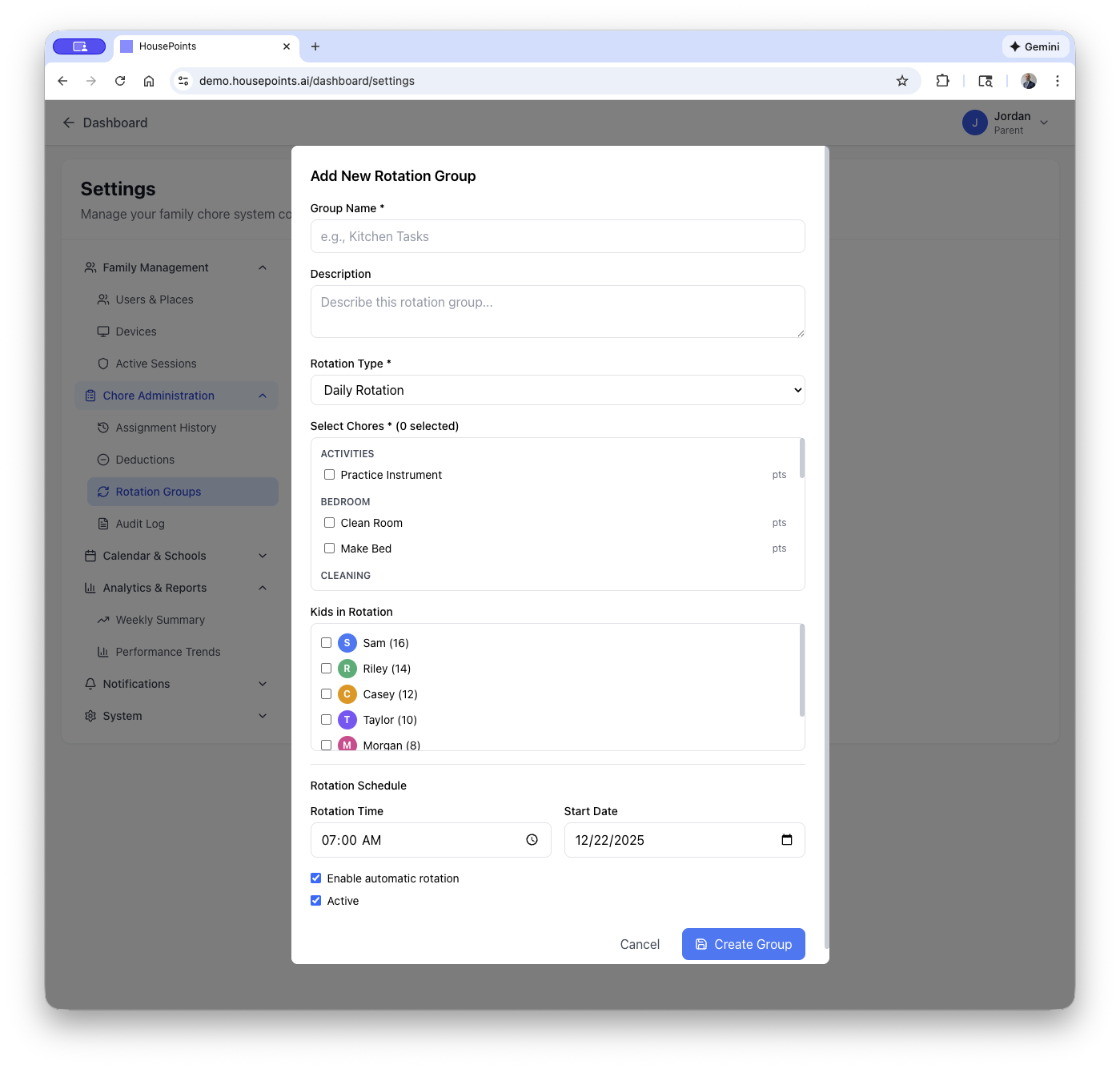
Recurrence Options
- Daily - Chore appears every day.
- Weekly - Choose specific days (e.g., Monday, Wednesday, Friday).
- Bi-weekly - Every two weeks on selected days.
- Monthly - On a specific date each month.
- Custom - Set your own pattern (e.g., every 3 days).
Setting Up Recurrence
- Create or edit a chore.
- In the Schedule section, select a recurrence pattern.
- Choose the days or frequency.
- Set a start date (when the chore should first appear).
- Optionally set an end date.
Recurring chores generate new instances automatically. If a child misses a chore, it can be marked as incomplete or rolled over to the next day based on your settings.
Completing Chores
Children mark chores complete through the web app, mobile app, or kiosk. Here's what the process looks like from their perspective.
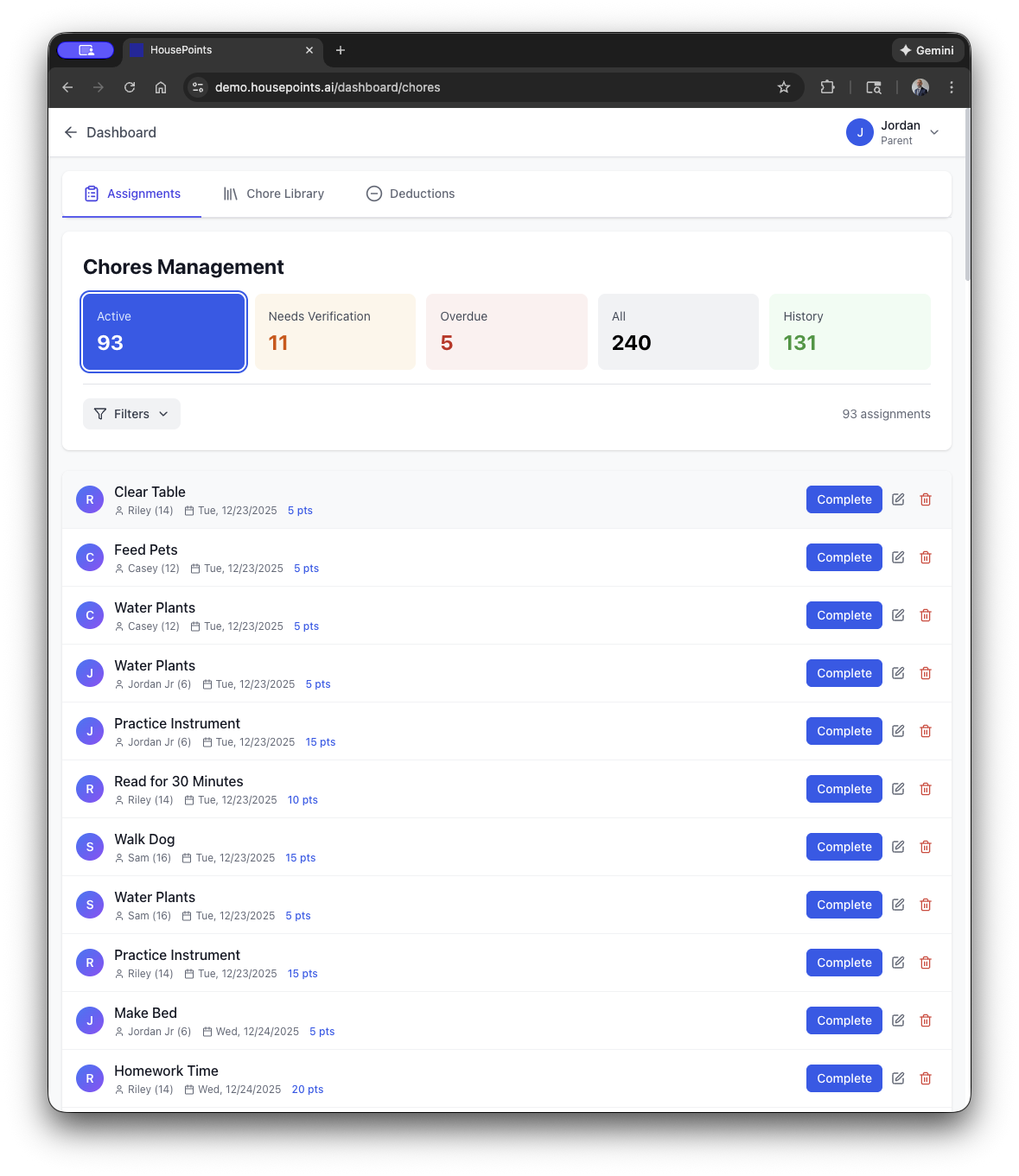
For Children
- View assigned chores in the "My Chores" or "Today" view.
- Complete the physical task.
- Tap the chore and click Mark Complete.
- Optionally add a photo as proof of completion.
- Submit for verification (if required) or earn points immediately.
Photo Verification
Enable photo verification for chores that benefit from visual proof. When enabled, children must attach a photo when marking the chore complete. Parents review the photo before approving.
Photo verification works well for chores like:
- Clean your room
- Organized closet
- Completed homework
- Set the table
Kiosk Slider Interface
On kiosk touchscreens, chores feature an intuitive drag-to-complete slider interface. This provides a satisfying, tactile way for kids to interact with their tasks.
How the Slider Works
Each chore displays a visual slider showing the current status. Kids drag the slider thumb to advance the chore through its workflow:
- Assigned to Completed - Kids slide right to mark a chore as done. A celebration animation plays when completed.
- Pending Verification - If verification is enabled, completed chores show "Waiting for parent" and cannot be advanced further by kids.
- Parent Verification - Parents can slide to verify chores on their own devices or the web app.
Kiosk Status Sections
The kiosk dashboard organizes chores into clear sections:
- Overdue Chores - Red section showing past-due tasks that need attention.
- Pending Verification - Orange section showing completed chores awaiting parent approval.
- Open for Bidding - Yellow section for unassigned chores anyone can claim.
- Today's Chores - Main list of assigned tasks for the current day.
Touch-Friendly Design
The slider interface is optimized for touchscreen use with large touch targets and smooth animations. Visual feedback confirms each action, and the color-coded status markers make it easy to see progress at a glance.
Verifying Chores
Parents can require verification before points are awarded. This ensures chores are actually completed to standard.
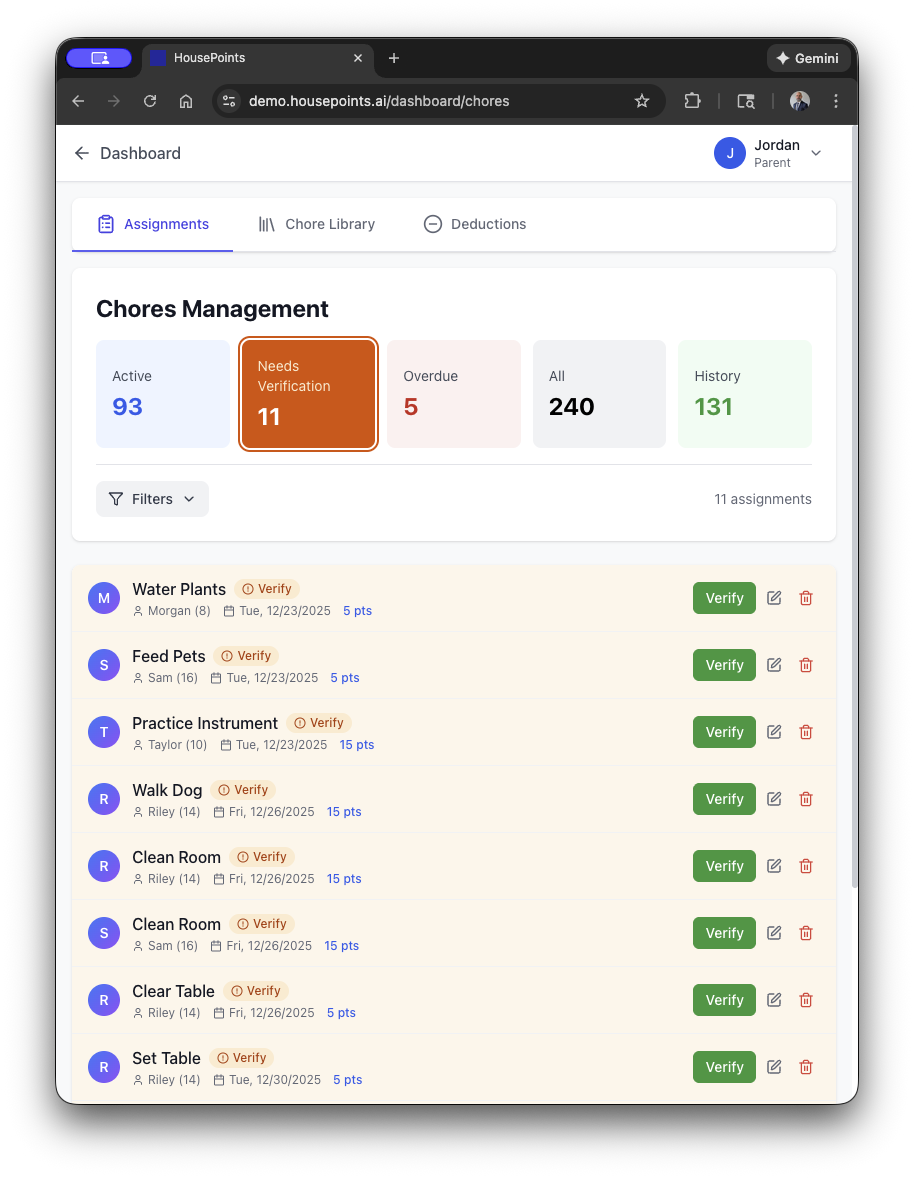
Verification Settings
When creating or editing a chore, choose a verification mode:
- No Verification - Points awarded immediately when child marks complete.
- Parent Verification Required - Chore goes to pending queue. Parent must approve.
- Photo Required - Child must attach a photo. Parent reviews and approves.
Approving Chores
- Open the Pending Verifications section (appears on dashboard when items are waiting).
- Review each submitted chore (and photo if applicable).
- Click Verify to approve and award points.
- Or click Reject to send it back with optional feedback.
Bulk Verification
Multiple chores can be verified at once. Select multiple pending chores and click Verify Selected.
Chore Trading
Chore trading lets children swap chores with siblings. This teaches negotiation and flexibility while ensuring all chores get done.
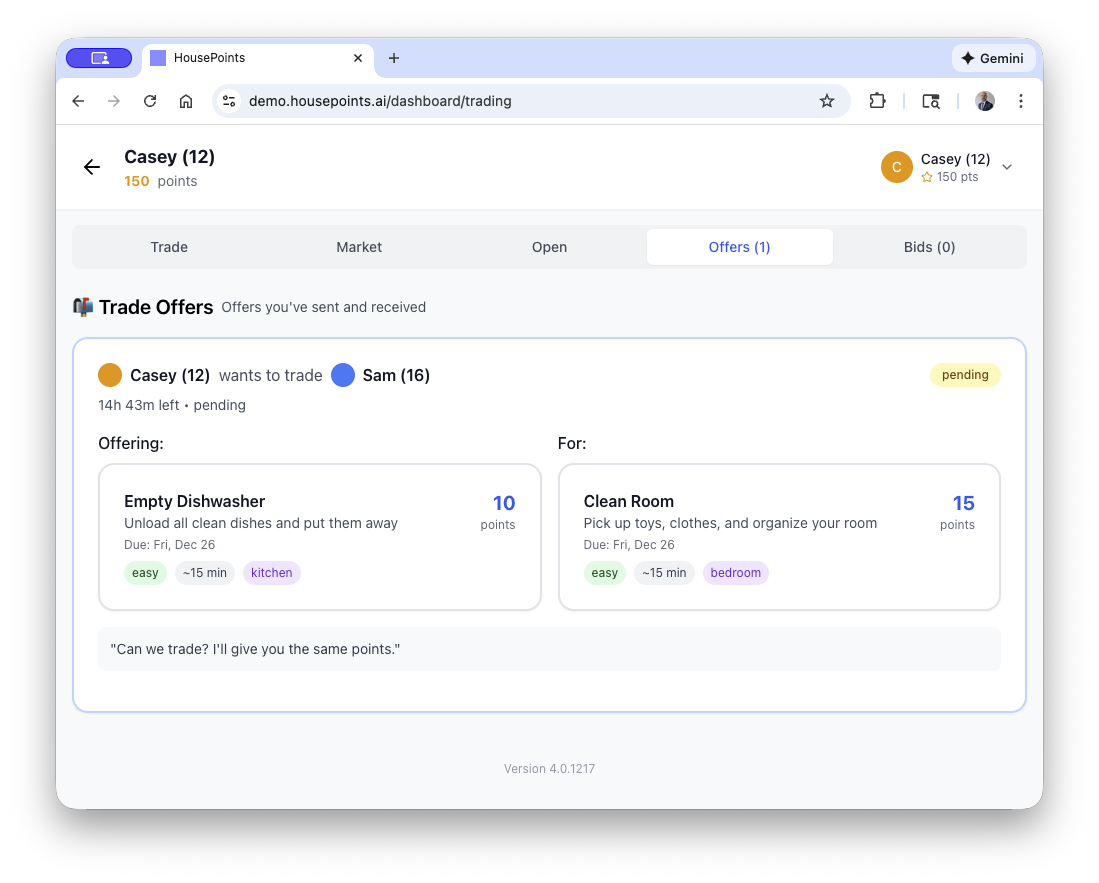
How Trading Works
- A child initiates a trade by selecting one of their assigned chores.
- They choose a sibling and one of that sibling's chores to trade for.
- The sibling receives a trade request notification.
- If the sibling accepts, the chores swap assignments.
- If declined, nothing changes.
Trade Rules
- Trades can only happen before either chore is completed.
- Parents can enable or disable trading in settings.
- Parents can optionally require approval for all trades.
- Point values stay with the chores (not adjusted based on who does them).
Enabling Chore Trading
- Go to Settings > Chores.
- Toggle Allow Chore Trading on.
- Optionally enable Require Parent Approval for trades.
Best Practices
- Start with a few simple chores and add more over time.
- Be consistent with point values across similar tasks.
- Use verification for chores that need quality checks.
- Review and adjust point values periodically as kids grow.