Calendar
Keep the whole family organized with a shared calendar. Schedule events, view activities, and see who's busy when.
Last updated: March 2026
Viewing the Calendar
The HousePoints calendar shows all family events, activities, scheduled chores, and meals in one place. Everyone in the family sees the same calendar.
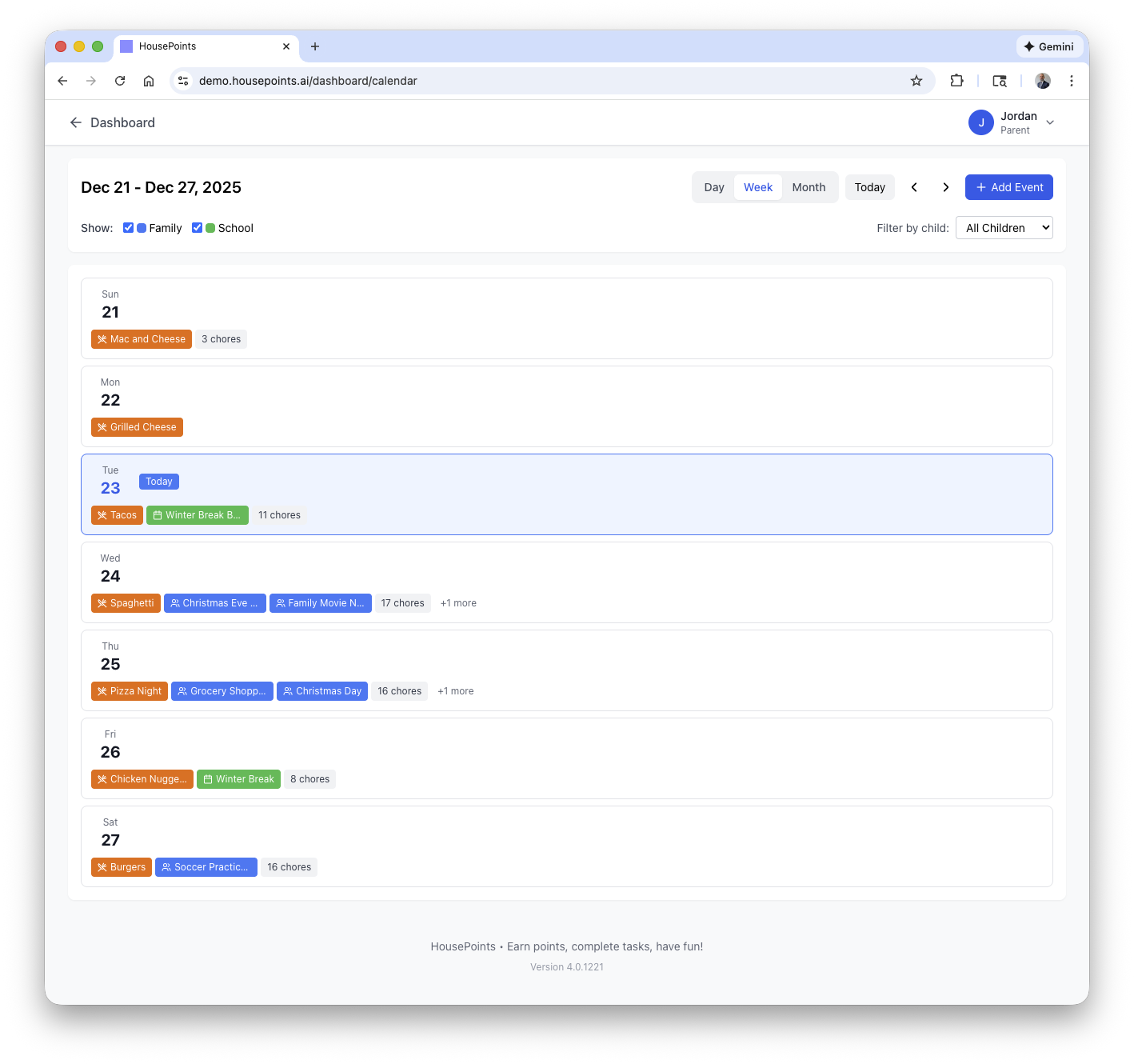
Calendar Views
- Day View - Detailed hourly view of a single day.
- Week View - See the entire week at a glance (default view).
- Month View - Overview of the whole month with event indicators.
What Appears on the Calendar
- Family Events - Appointments, activities, and reminders you create.
- Scheduled Chores - Chores with specific due dates.
- Meal Plans - Planned meals for each day.
- Birthdays - Family member birthdays (if dates are entered).
- School Events - Events imported from subscribed school and district calendars.
Color Coding
Calendar items are color-coded for quick identification. Each child has their own color, and event types have distinct colors:
- Family events - Purple
- Individual activities - Child's assigned color
- Chores - Green
- Meals - Orange
- School events - Teal
- Holidays - Red
Event colors can be customized in Calendar Settings. Each event type can be assigned a custom color to match your preferences.
Adding Events
Create events for appointments, activities, reminders, and anything else your family needs to track.
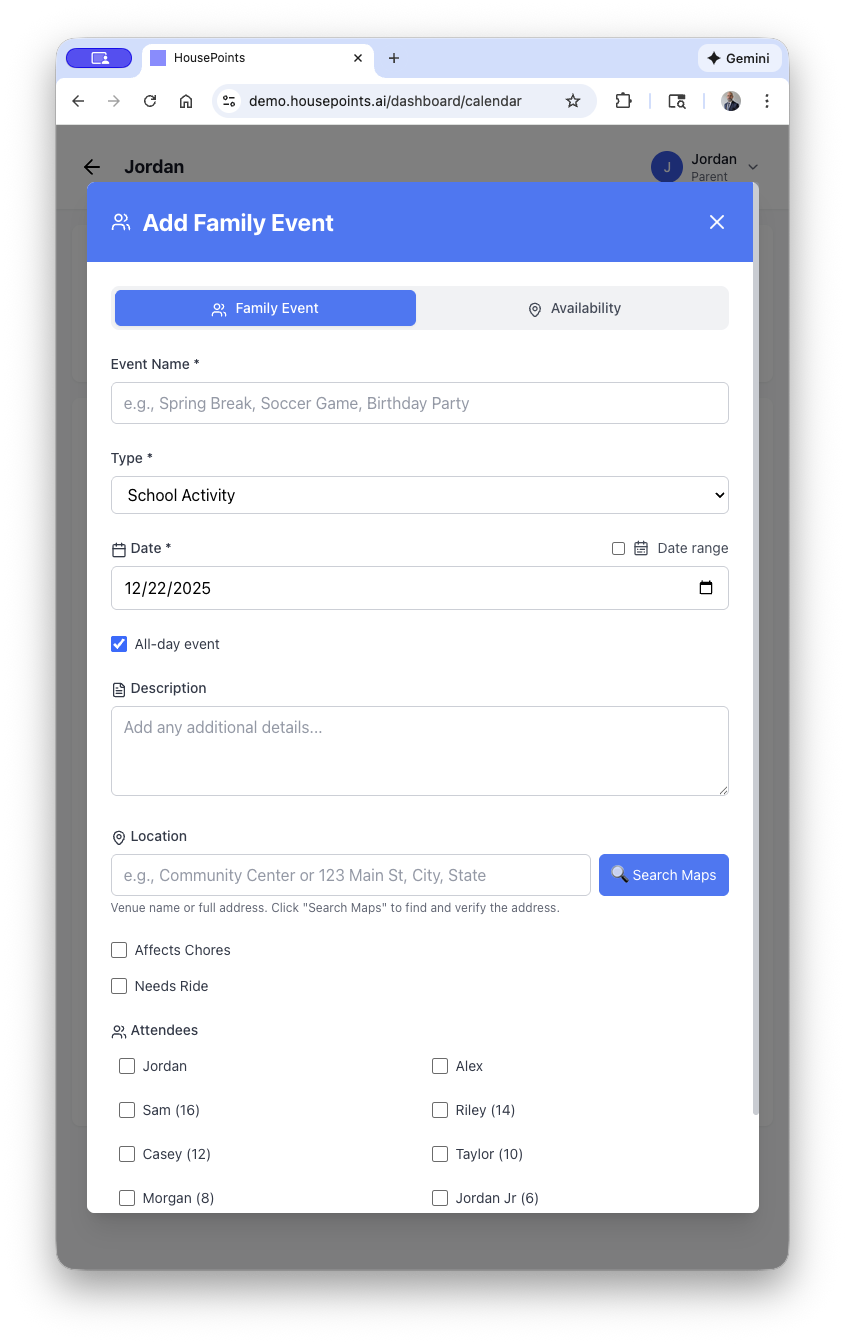
How to Add an Event
- Navigate to the Calendar.
- Click on a day or tap Add Event.
- Enter event details:
- Title - Event name (e.g., "Soccer practice", "Doctor appointment").
- Date & Time - When the event occurs.
- Duration - How long the event lasts.
- Location - Optional address or place name.
- Description - Additional details or notes.
- Participants - Which family members are involved.
- Click Save.
All-Day Events
For events without a specific time (like birthdays, holidays, or school breaks), toggle "All Day" when creating the event. All-day events appear at the top of the day view.
Event Reminders
Set reminders to receive notifications before events:
- 15 minutes before
- 30 minutes before
- 1 hour before
- 1 day before
- Custom time
Recurring Events
Many family activities happen regularly. Set up recurring events so they automatically appear on the calendar.
Recurrence Patterns
- Daily - Every day at the same time.
- Weekly - Same day(s) each week (e.g., Soccer every Tuesday and Thursday).
- Bi-weekly - Every two weeks.
- Monthly - Same date each month or same day (e.g., first Monday).
- Yearly - Annual events like birthdays and anniversaries.
Setting Up Recurring Events
- Create or edit an event.
- Click Repeat or Recurrence.
- Select the pattern (weekly, monthly, etc.).
- Choose specific days if applicable.
- Optionally set an end date.
- Save the event.
Editing Recurring Events
When you edit a recurring event, you'll be asked:
- This event only - Changes apply only to this instance.
- This and future events - Changes apply from this date forward.
- All events - Changes apply to the entire series.
Family Activities
Track your children's activities and commitments. Activities help you see who's busy when and coordinate family schedules.
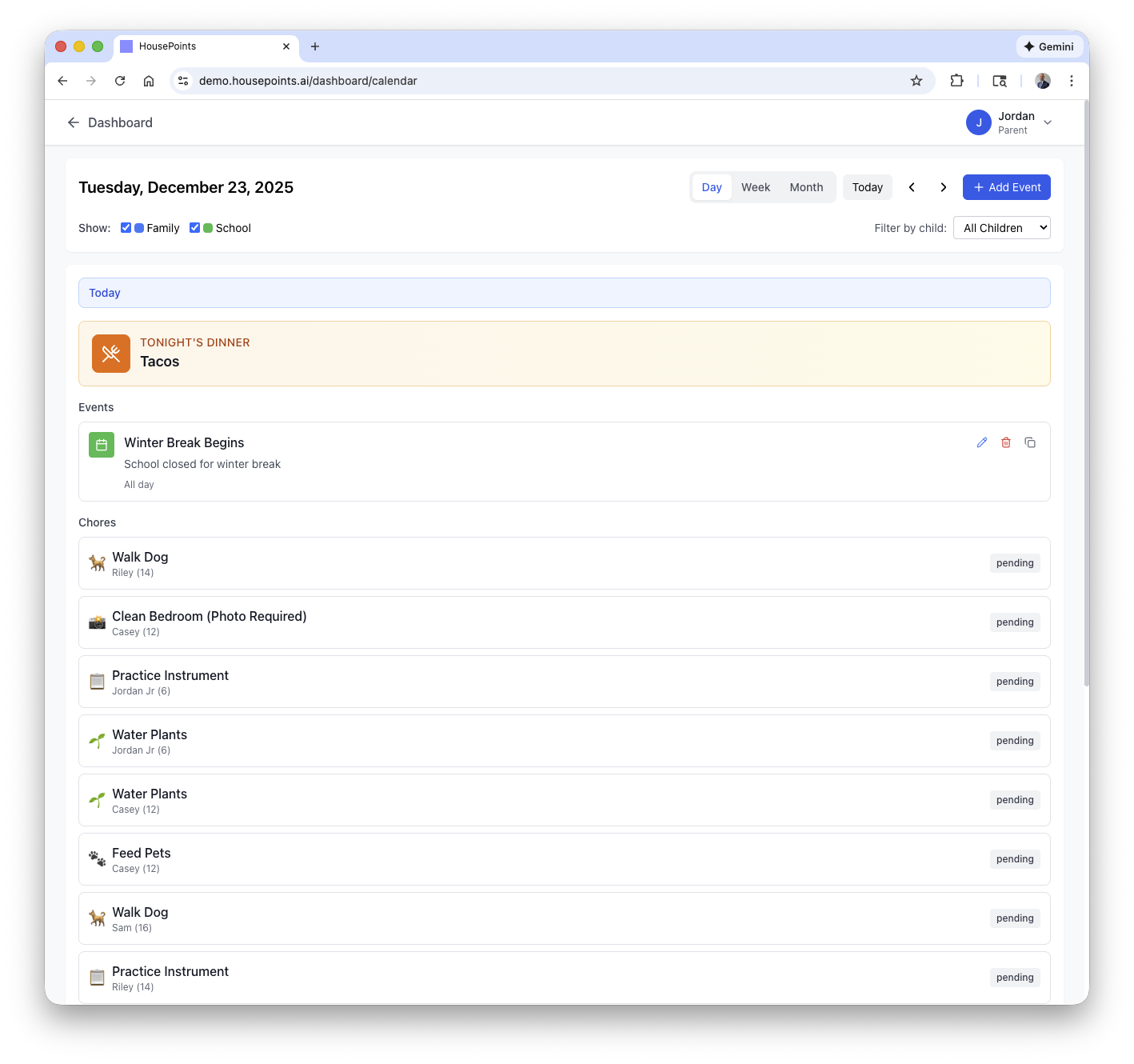
Types of Activities
- Sports practices and games
- Music lessons
- Tutoring sessions
- Clubs and extracurriculars
- Playdates and social events
- School events
Assigning Activities to Children
When creating an event, select which family members are participating. The event will appear in that child's color on the calendar.
Filtering the Calendar
Use filters to simplify your view:
- By Family Member - Show only one person's events.
- By Event Type - Show only chores, only meals, or only activities.
- All Events - Full family calendar (default).
School Calendar Integration
HousePoints can import events from your children's school and district calendars. School holidays, early dismissals, parent-teacher conferences, and other events automatically appear on your family calendar.
Subscribing to a School District
- Go to Settings > Calendar & Schools > Schools.
- Select your state from the dropdown.
- Search for your district by name.
- Click Subscribe next to your district. District-wide events like professional development days and holidays will sync to your calendar.
Subscribing to a Specific School
- After selecting a district, expand it to see individual schools.
- Click Subscribe next to your child's school for school-specific events.
Adding a Custom School
If your school or district isn't listed, you have two options:
- Add Custom School - Add your school manually for personal tracking.
- Request School/District - Request that we add your school's calendar to the platform for automatic event syncing.
Managing Subscriptions
Active subscriptions appear at the top of the Schools page, color-coded by type (blue for schools, green for districts). You can unsubscribe at any time, and school events will be removed from your calendar.
Calendar Settings
Customize your calendar display and behavior in Settings > Calendar & Schools > Calendar Integration.
Display Options
- Default View - Choose between month, week, day, or list view.
- Week Start Day - Start weeks on Sunday, Monday, or Saturday.
- Time Format - 12-hour or 24-hour clock.
- Show Weekends - Toggle weekend visibility on or off.
Event Visibility
Toggle which event types appear on the calendar. This lets you focus on what matters most:
- Chores & Assignments
- Appointments
- School Events
- Holidays
- Family Events
Notifications
Configure event reminders with options for push notifications and email alerts. Set a default reminder time (5 minutes to 1 day before events).
Calendar Sync
Sync your HousePoints calendar with external calendars like Google Calendar, Apple Calendar, or Outlook.
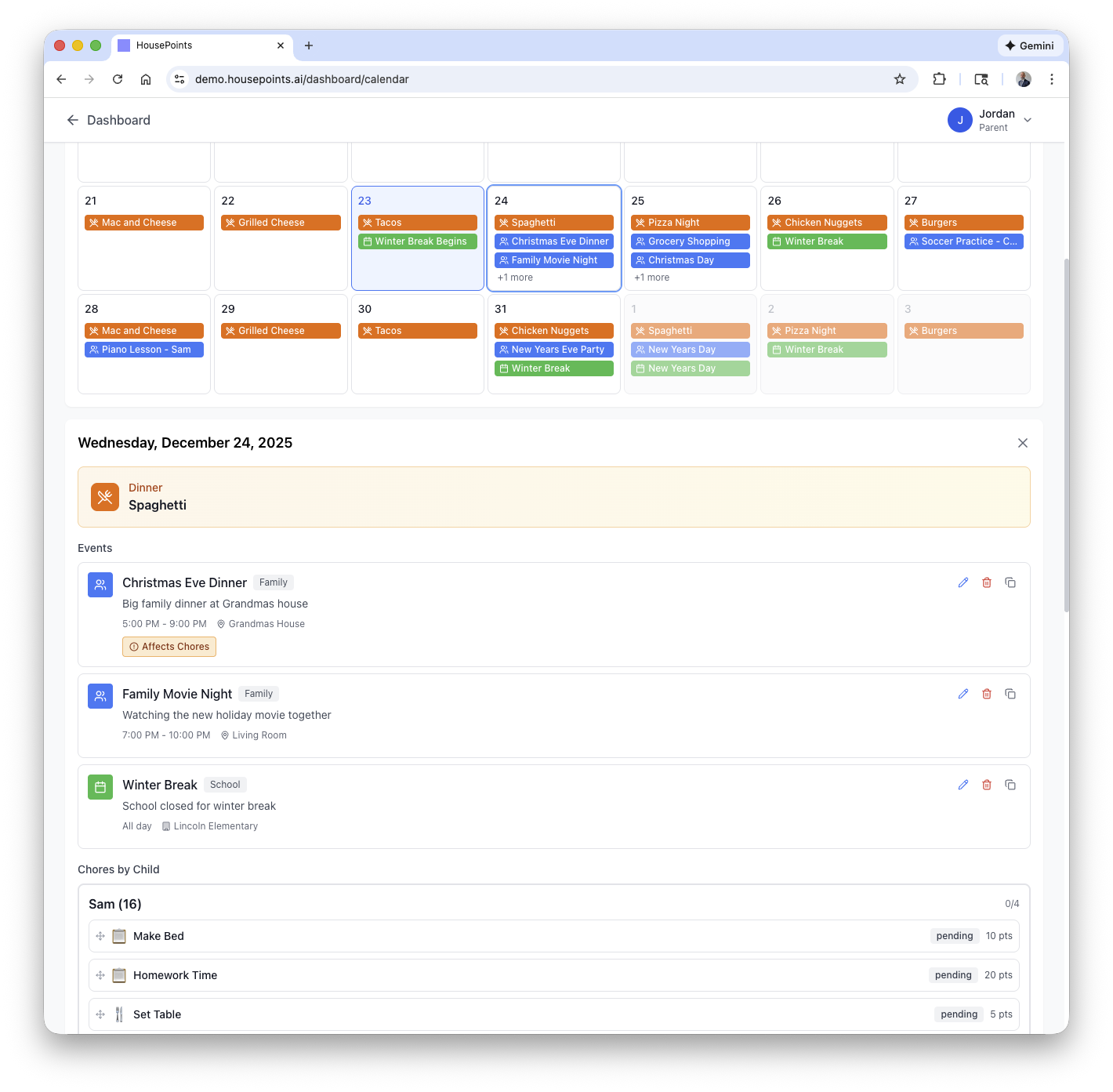
Exporting Your Calendar
Export your HousePoints calendar to view events in other calendar apps:
- Go to Settings > Calendar & Schools > Calendar Integration.
- Open the Sharing tab.
- Enable the iCal Feed toggle.
- Copy the iCal URL provided.
- Add this URL as a subscription in your preferred calendar app.
This is a one-way sync. Events from HousePoints appear in your external calendar, but events created elsewhere won't appear in HousePoints.
Supported Calendars
- Google Calendar
- Apple Calendar (iCal)
- Microsoft Outlook
- Any calendar that supports iCal subscriptions
Subscribe to Individual Calendars
You can generate separate calendar URLs for each family member, allowing parents to subscribe only to relevant events.
Calendar Tips
- Use the week view to plan ahead and avoid scheduling conflicts.
- Set reminders for important appointments to ensure no one forgets.
- Color-code children to quickly see who has events each day.
- Check the calendar on the family kiosk each morning for the day's schedule.