Meals
Plan family meals for the week, manage recipes, and generate shopping lists. Assign cooking duties so everyone knows who's making dinner.
Last updated: March 2026
Meal Planning Overview
The meals feature helps your family plan what to eat, track recipes, and know who's cooking. No more "What's for dinner?" questions.
Benefits of Meal Planning
- Save Time - Decide meals once per week instead of every day.
- Reduce Food Waste - Buy only what you need for planned meals.
- Share Responsibility - Assign cooking duties among family members.
- Eat Better - Plan balanced meals instead of last-minute choices.
How Meal Planning Works
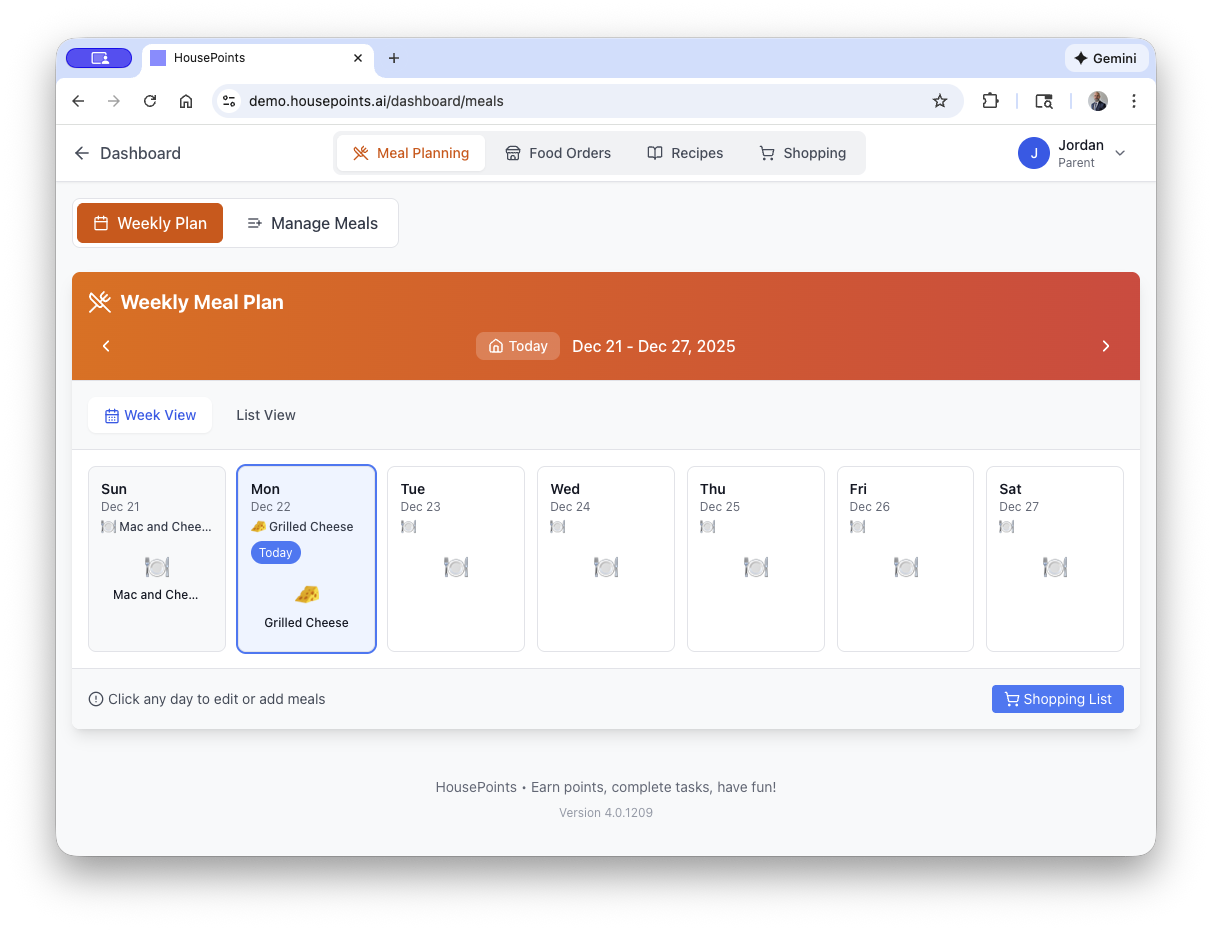
- Plan meals for each day of the week.
- Assign who's cooking each meal.
- Generate a shopping list from planned meals.
- View the meal plan on the calendar and kiosk.
Adding Meals
Add meals to your family's weekly plan through the Meals section or calendar.
Quick Add
- Go to Meals in the navigation.
- Click on a day in the weekly view.
- Select the meal type (Breakfast, Lunch, or Dinner).
- Enter the meal name (e.g., "Tacos", "Spaghetti", "Grilled chicken").
- Click Add.
Meal Details
For more detailed planning, you can add:
- Meal Name - What you're eating.
- Meal Type - Breakfast, Lunch, Dinner, or Snack.
- Recipe Link - Link to a saved recipe (optional).
- Notes - Special instructions or variations.
- Cook - Who's preparing this meal.
Weekly View
The weekly meal planner shows all seven days with breakfast, lunch, and dinner slots. You can drag and drop meals to rearrange them between days.
Meal Voting
Let the family vote on what to eat. When multiple meal options are available for a slot, family members can vote for their preference.
How Voting Works
- Add multiple meal options to a meal slot (e.g., two dinner choices for Tuesday).
- Family members vote for their preferred option.
- The meal with the most votes wins.
Opting Out of Dinner
Family members can opt out of a meal if they won't be home or have other plans. This helps with meal planning quantities and grocery shopping. Parents can enable or disable the dinner opt-out option in meal settings.
Recipe Management
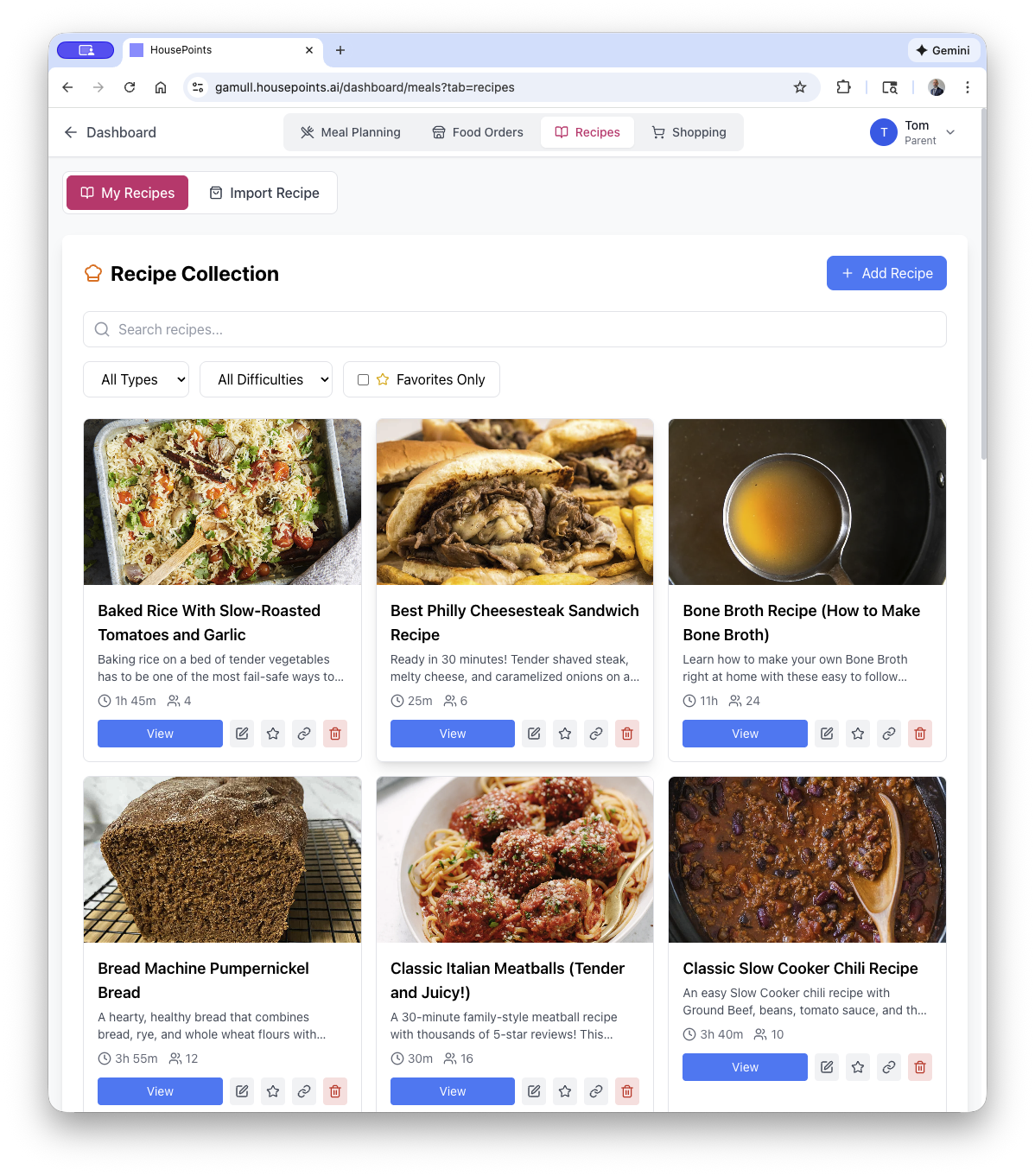
Save your family's favorite recipes for quick meal planning.
Adding Recipes
- Go to Meals > Recipes.
- Click Add Recipe.
- Enter recipe details:
- Name - Recipe name.
- Ingredients - List of ingredients with quantities.
- Instructions - Step-by-step cooking directions.
- Prep Time - How long to prepare.
- Cook Time - How long to cook.
- Servings - Number of servings.
- Category - Type of meal (Main dish, Side, Dessert, etc.).
- Click Save.
Importing Recipes
You can import recipes from popular cooking websites. Paste the URL and HousePoints will attempt to extract the recipe details automatically.
Using Recipes in Meal Planning
When adding a meal to your plan:
- Click Choose from Recipes.
- Browse or search your saved recipes.
- Select a recipe to add it to the meal plan.
Shopping Lists
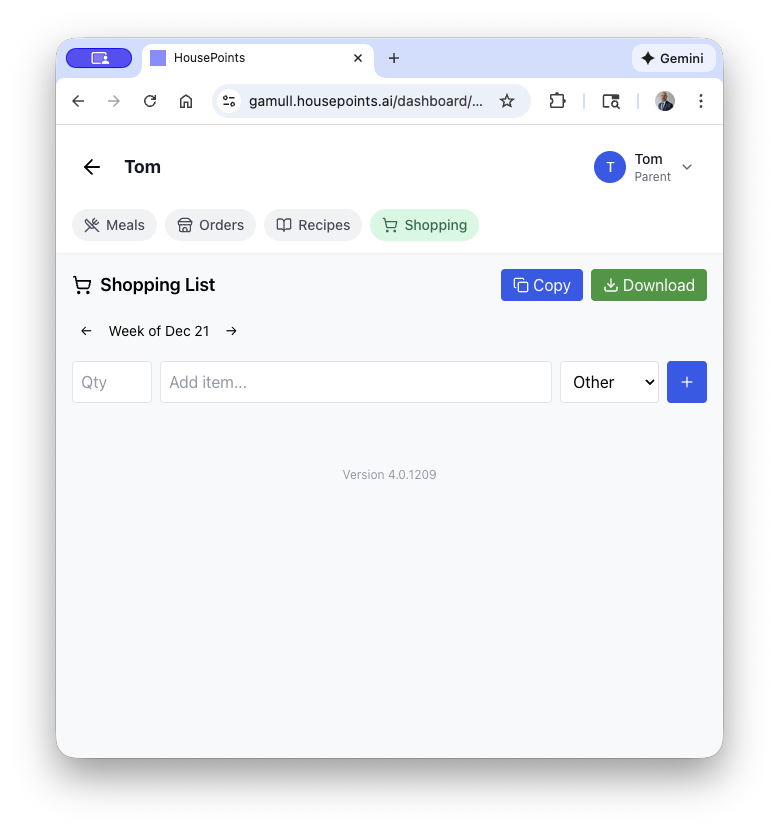
Generate shopping lists automatically from your planned meals, or create custom lists manually.
Auto-Generate from Meal Plan
- Plan your meals for the week with recipes that have ingredients.
- Go to Meals > Shopping List.
- Click Generate from Meal Plan.
- Select the date range (current week, next week, etc.).
- Review the generated list. Ingredients are combined and organized by category.
Managing the Shopping List
- Add Items - Manually add items not from recipes.
- Check Off Items - Mark items as purchased while shopping.
- Remove Items - Delete items you already have.
- Share List - Send the list to a family member or print it.
Shopping List Categories
Items are organized by store section:
- Produce
- Meat & Seafood
- Dairy
- Bakery
- Frozen
- Pantry
- Other
Cooking Assignments
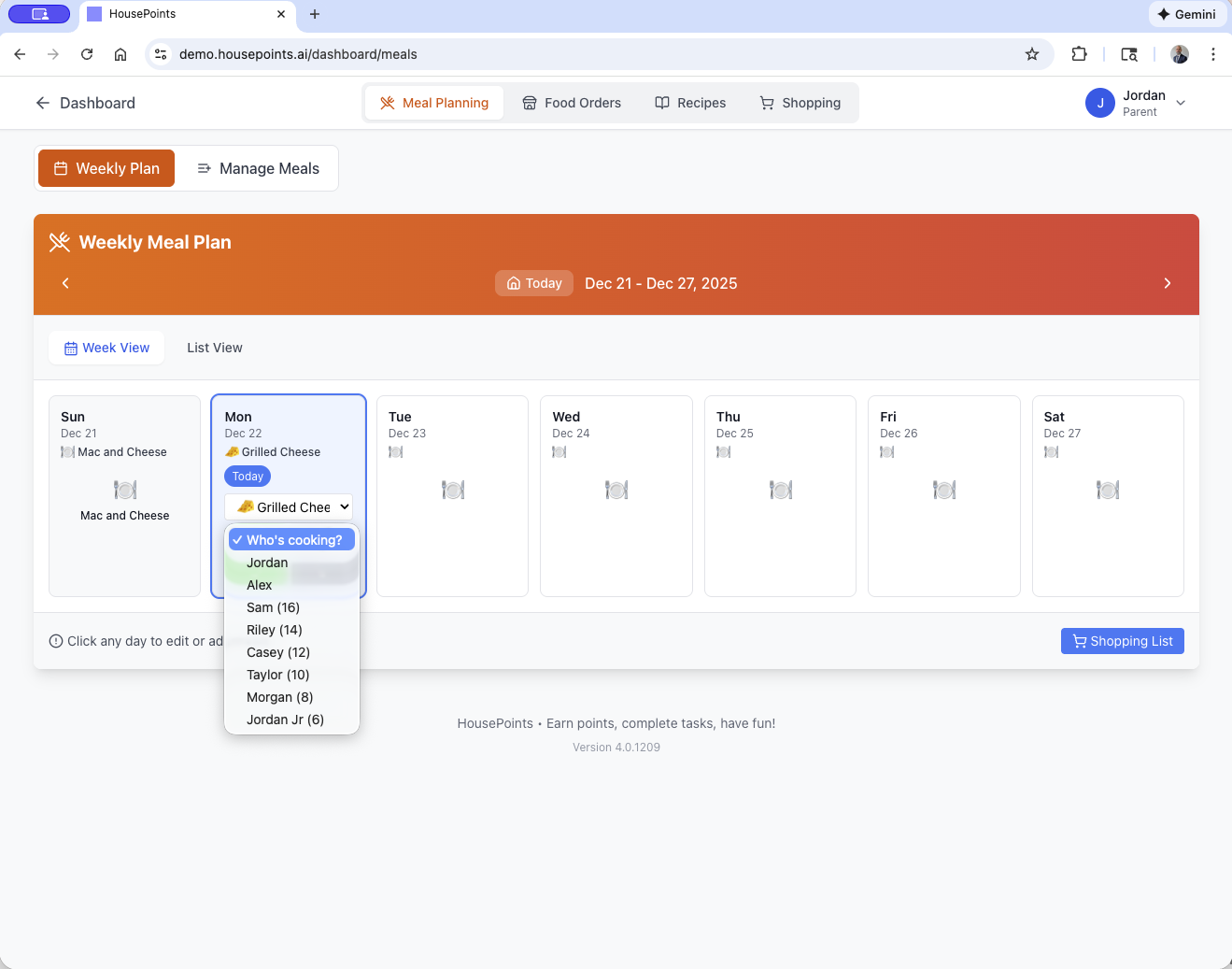
Assign cooking duties to family members. This works great for older kids learning to cook or sharing meal prep responsibilities between parents.
Assigning a Cook
- When adding or editing a meal, find the "Cook" field.
- Select a family member from the dropdown.
- Save the meal.
Viewing Assignments
The weekly meal view shows who's cooking each meal. Each person's assigned meals appear in their color.
Cook's View
Family members can filter the meal plan to see only meals they're responsible for cooking. This is especially helpful for older children with cooking assignments.
Cooking Rotation
Set up a rotating schedule so cooking duties automatically assign to different family members:
- Go to Meals > Settings.
- Enable Cooking Rotation.
- Select which family members participate.
- Choose the rotation pattern (daily, specific days, etc.).
Dinner Attendance
Track who's eating dinner each night. This is especially useful for larger families where people have different schedules.
How It Works
- Family members indicate whether they'll be home for dinner.
- The kiosk displays tonight's dinner plan and who's attending.
- Parents can add guests who are joining for the meal.
Dinner attendance is visible on the family kiosk, making it easy for whoever is cooking to know how many people to prepare for.
Meal Planning Tips
- Plan meals on Sunday to prepare for the week ahead.
- Keep a list of family favorite meals for quick planning.
- Assign kids age-appropriate cooking tasks to build skills.
- Use the kiosk display so everyone knows what's for dinner.